

Your progress saves itself
There is no save button in the intake. About half a second after you stop typing, your answers are stored as a draft.
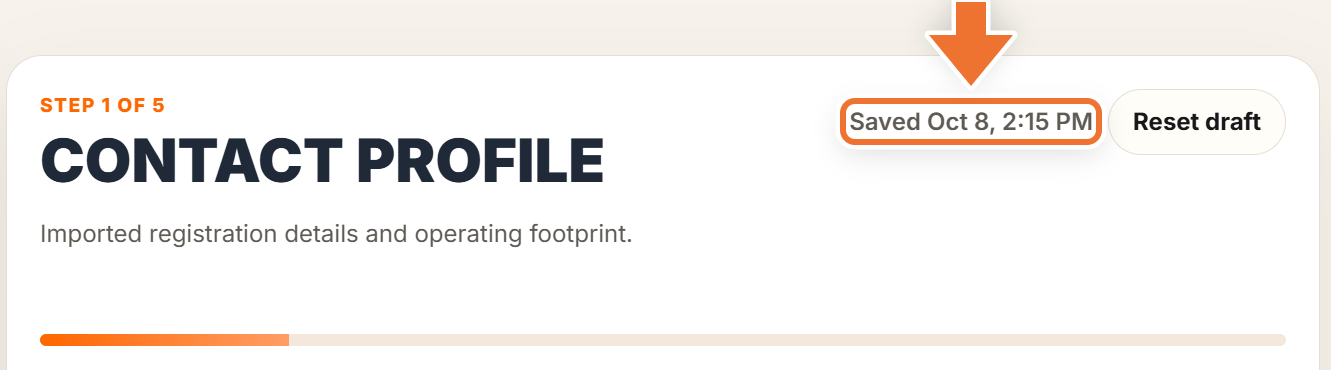
The header of the form shows the last save, for example "Saved Oct 8, 2:15 PM", and the "Autosave" card on the left reads "LIVE" with the same time. It shows "Syncing" for a moment while a save is on its way.
Leaving and coming back
You can close the tab or log out at any point. The next time you sign in, on this or any other device, you land back on the step you were working on, with every saved answer in place.
Starting over with "Reset draft"
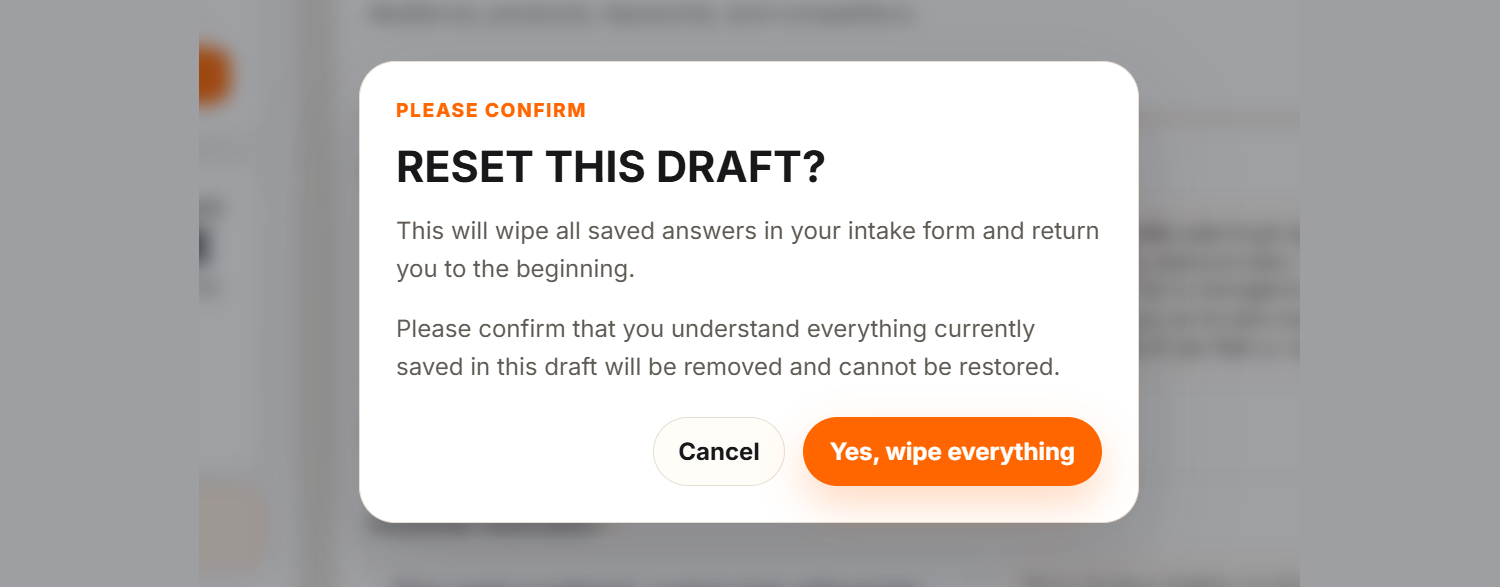
"Reset draft", next to the "Saved" note, clears the entire form, not just the current step, and takes you back to step 1. Before anything happens you are asked "Reset this draft?". Press "Yes, wipe everything" only if you really want a clean slate; press "Cancel" to keep your answers.
"Reset draft" is only for the intake before you submit it. After you submit, change single answers in Settings, or start the whole intake again with a re-do.