

Change any answer, any time
Once your intake is submitted, every answer is available in Settings under "Your answers". You can change any of them as often as you like. It is free and does not use one of your re-dos, and each change reaches your content plan right away.
Where to find your answers
Open Settings from the menu on the left and expand "Intake preference". Under "Your answers", the answers are grouped like the intake itself: Contact profile, Business profile, Market position, Content & style, and Schedule & automation. Open a group to see its answers.
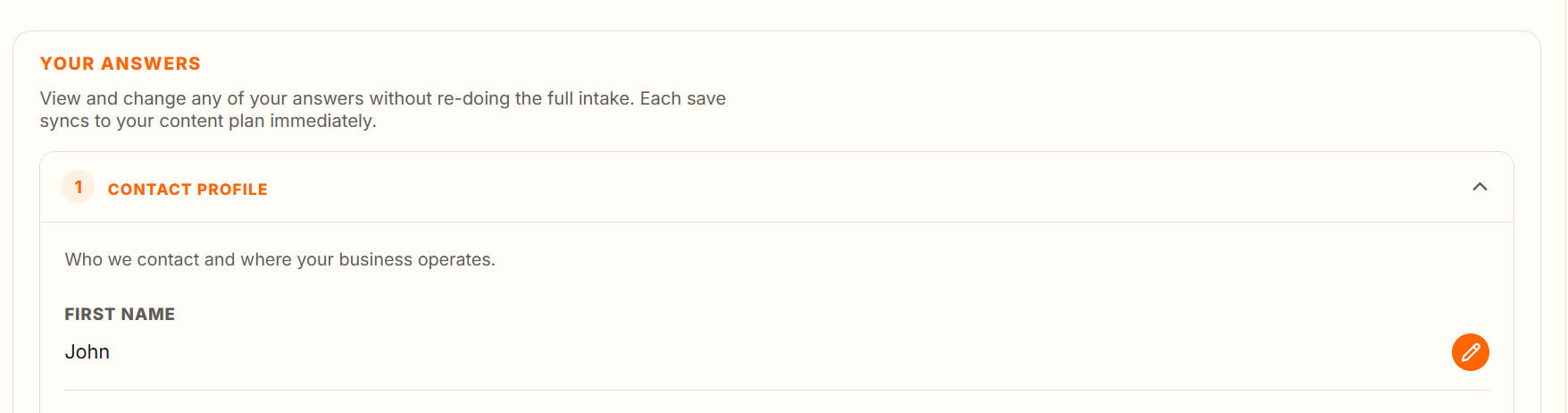
Changing an answer
- Press the orange pencil next to the answer.
- Change the text. On long answers you can also dictate with the microphone, if voice dictation is turned on in your Settings.
- Press "Save", or press Enter (Ctrl+Enter in longer text boxes). Press "Cancel" or Esc to leave it unchanged.
- Wait for "Saved" with a tick before you move on.
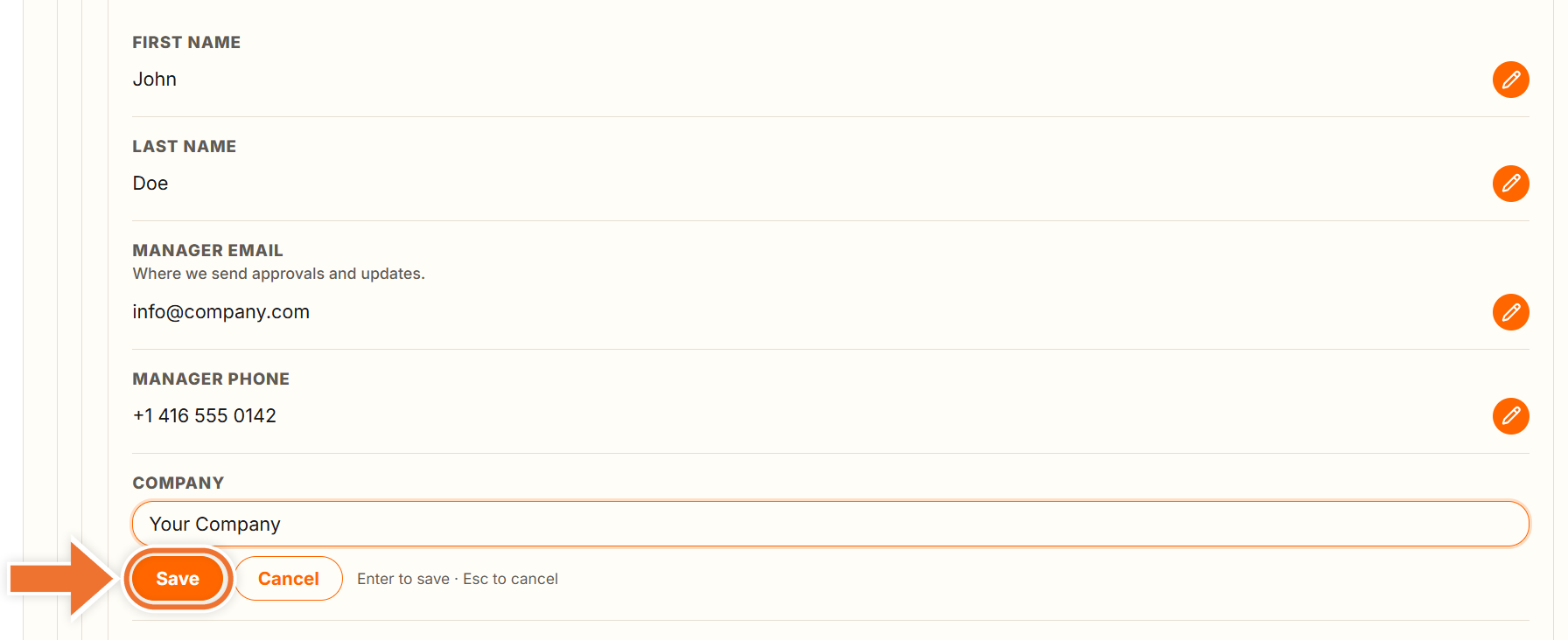
If you see "Couldn't save – try again", your change was not stored. Check your connection and press "Save" again.
Logo, brand assets and image samples
Files you uploaded in the intake are listed here for reference only. To replace them, upload new files during a re-do of the intake, or send them to us in a ticket.
A single change or a re-do?
Use "Your answers" for anything from a new phone number to a rewritten target audience. Use a re-do only when so much has changed that you would rather start the whole intake again.