
When you need this
Use password recovery when your email and password stop working. Your saved intake and account data are safe: recovery only replaces the password.
Signed in with Google, Apple, Facebook, LinkedIn or Microsoft? You do not need a password: press the same button on the sign-in screen. You can still use the steps below if you would like to add a password and sign in with your email as well.
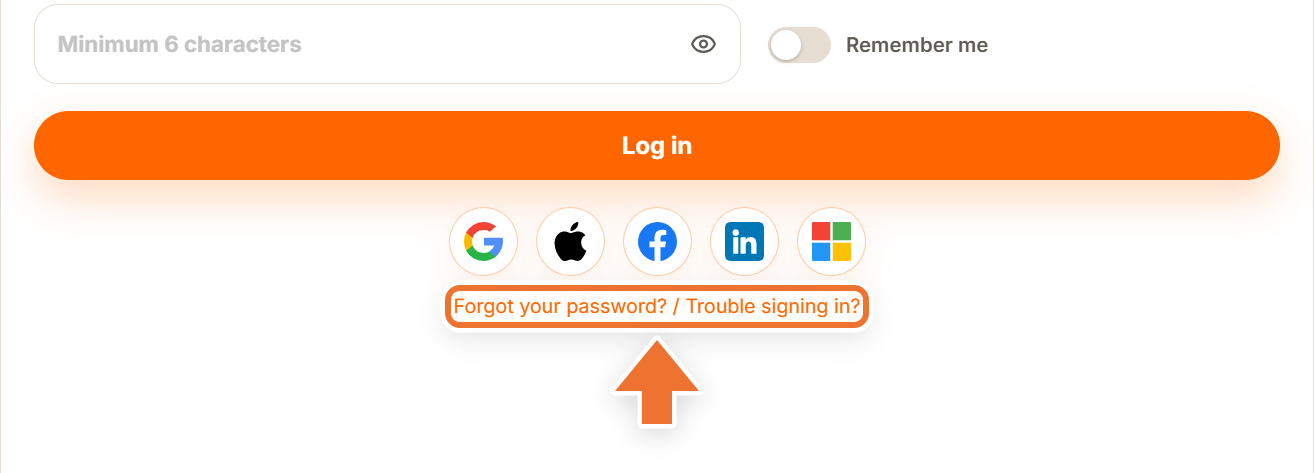
Step 1 – open the recovery page
On the sign-in screen, stay on the "Login" tab and press "Forgot your password? / Trouble signing in?" under the partner sign-in buttons.
Step 2 – request the reset link
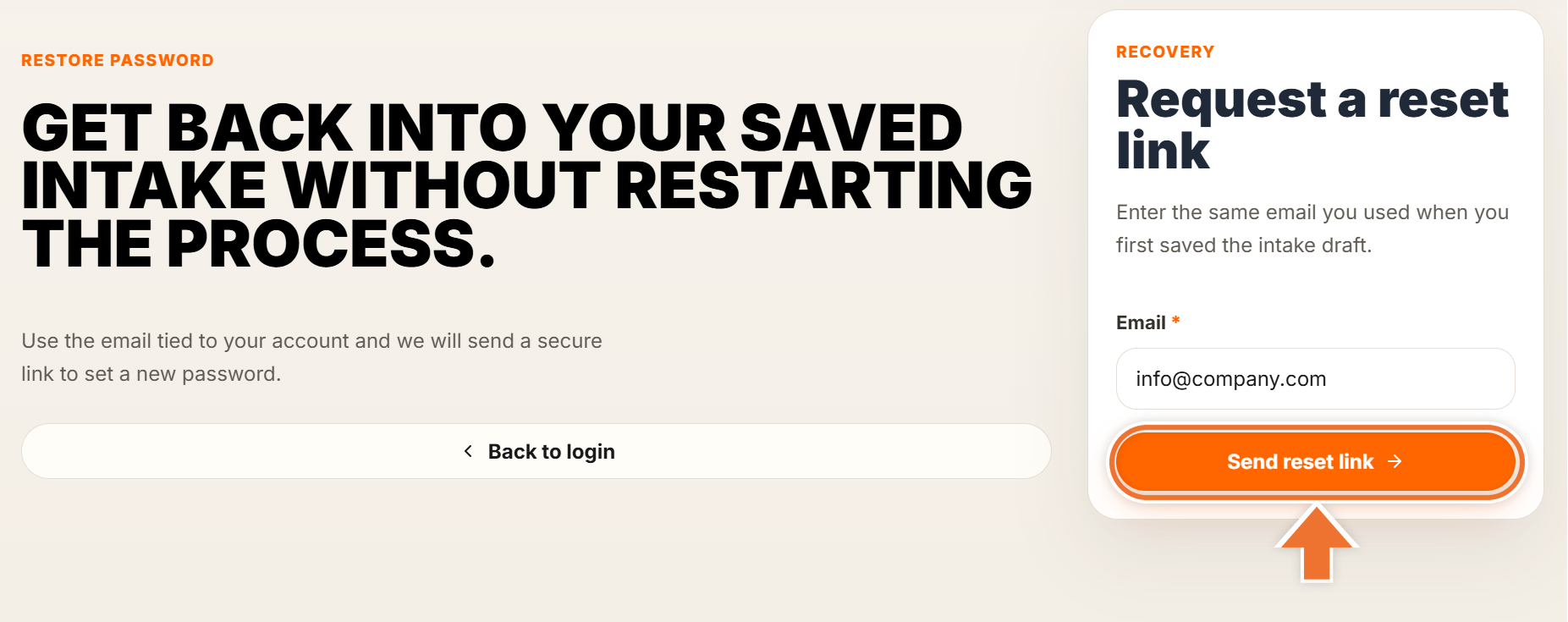
In the "Request a reset link" panel, enter the email address you use for your account and press "Send reset link".
You will see "If that email belongs to an account, a reset link will arrive shortly." For your security this message is the same whether or not the address is registered, so check the spelling if nothing arrives.
The email is titled "Reset your IN-STORE intake password". Give it a few minutes and check your spam folder if it does not appear.
Step 3 – set the new password
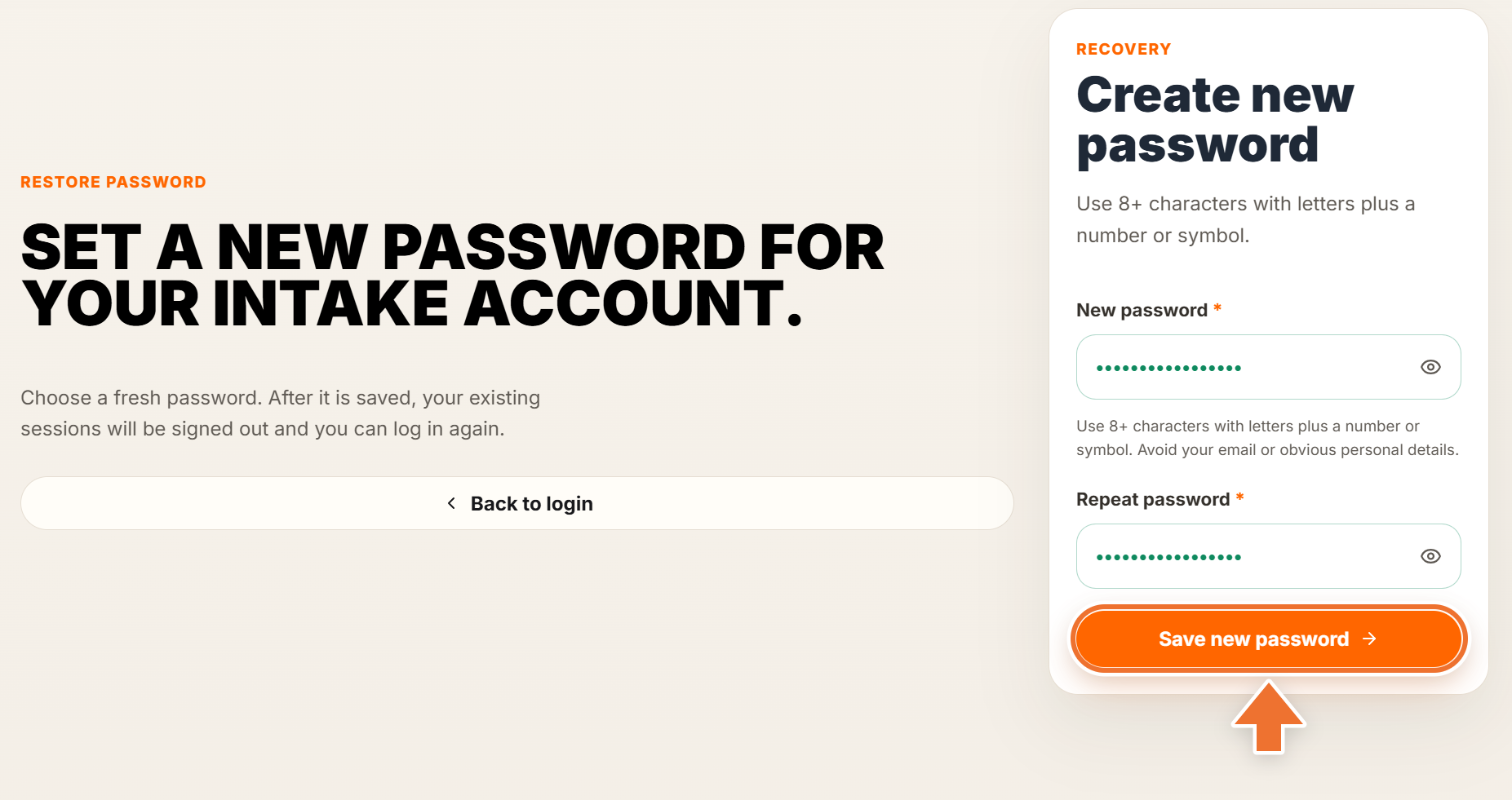
Open the email and press "Set a new password". It brings you back to the recovery page with a "Create new password" form.
- Enter a new password: at least 8 characters, with letters plus a number or symbol. Avoid your email or other obvious personal details.
- Repeat it in the "Repeat password" field. Both borders turn green when the password is strong enough and the two entries match.
- Press "Save new password".
The link in the email works once and for 1 hour. If it has expired, go back to Step 1 and request a new one.
Step 4 – sign back in
You will see "Your password has been updated. You can log in now." Press "Back to login" and sign in with your email and the new password.
For your safety, changing the password signs you out everywhere, including on other computers and phones. Sign in again on each device you use.
Still locked out?
If the reset email never arrives, or the link keeps saying it has expired, we will help you get back in.