
Before you start
This guide covers self-hosted WordPress, the kind of site you or your developer installed on your own hosting.
Your site needs to be served over https, so look for the padlock in your browser. WordPress will not create the credential described below on a site without it.
Why we ask for access
As part of your content marketing service, In-Store writes articles for your website. To let us add them securely, you create a user account for us on your site and generate an application password for it.
An application password is a separate, revocable credential built into WordPress for exactly this purpose. It cannot be used to sign in to your dashboard at all, it only works for the kind of automated connection described here, and you can cancel it from your own site at any time. You never share your own login with us. The whole process takes about ten minutes.
What you will send us
This is the one connection where something has to travel from you to us. Every other platform we connect to is arranged entirely inside the platform itself. WordPress is not, so at the end of this guide you send us three things by email:
- Your site address, copied from your WordPress settings in Step 5.
- The username, which will be in-store.
- The application password you generate in Step 4.
Send them to the In-Store email address we give you during onboarding, which is the same address you enter in Step 1. The application password is shown only once and cannot be recovered afterwards, so if you lose it before sending it, delete it on your site and generate a new one rather than searching for the old one.
What this login can do
We ask for the Editor role, which is the narrowest standard role in WordPress that covers what we need. As an Editor we can create, edit, publish and delete posts, and upload images to your media library.
The same role also covers pages, categories and tags, moderating comments, and editing posts written by other people. WordPress does not offer a posting-only role, so those come bundled. We only use the account for the articles we produce for you.
An Editor cannot install or change plugins and themes, cannot add or remove users, cannot change your site settings, and cannot delete your site. All of those stay with your Administrator account, which remains yours alone.
What you’ll need
- A self-hosted WordPress site, served over https.
- An Administrator account on that site, because only an Administrator can add users.
- The In-Store email address, which we provide during onboarding.
- About ten minutes.
Step 1 – Create the In-Store user
- Sign in to your WordPress dashboard as an Administrator.
- In the left menu, go to Users, then Add New User. On older versions this is labelled Add New.
- Set the Username to in-store and the Email to the In-Store address we gave you during onboarding.
- Under Role, select Editor.
- Click Add New User.
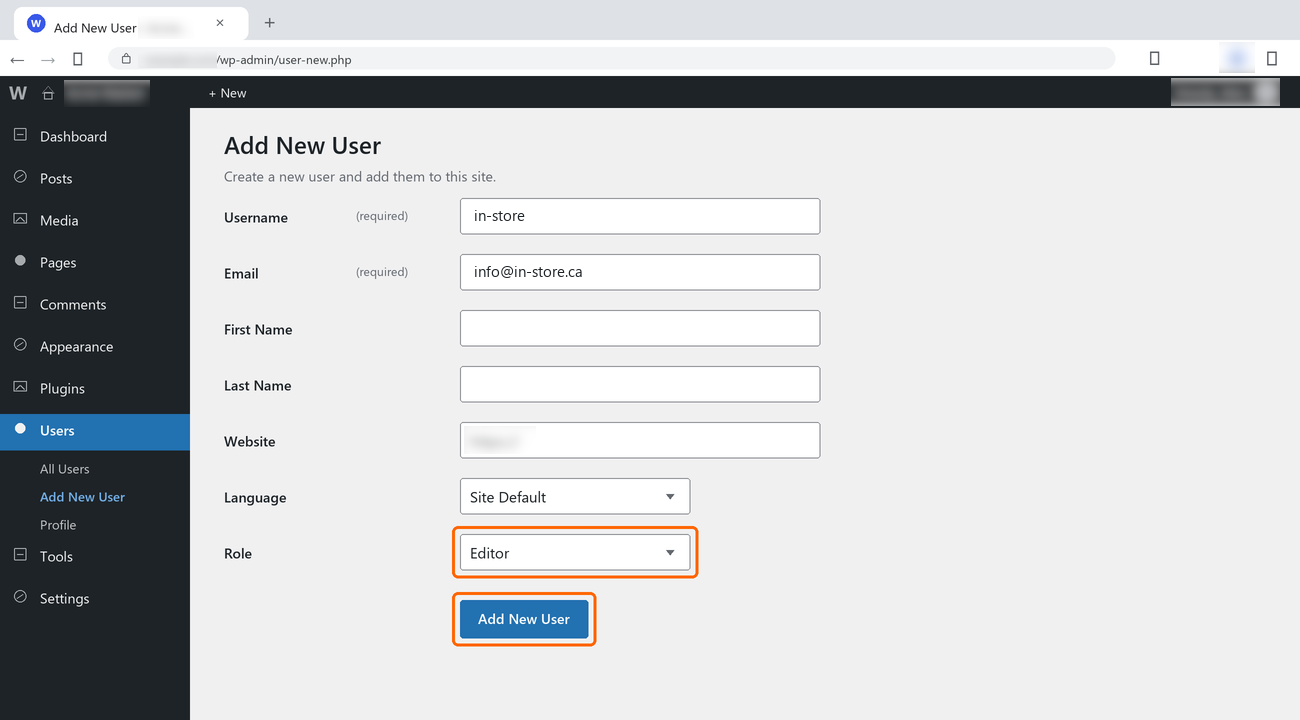
The screenshots use "info@in-store.ca" as an example. Use the address supplied to you if it is different. WordPress also creates a login password for this account as it goes, and you do not need to keep it or send it to us, because the credential we actually use is the application password you create in Step 4.
Step 2 – Open the In-Store user’s profile
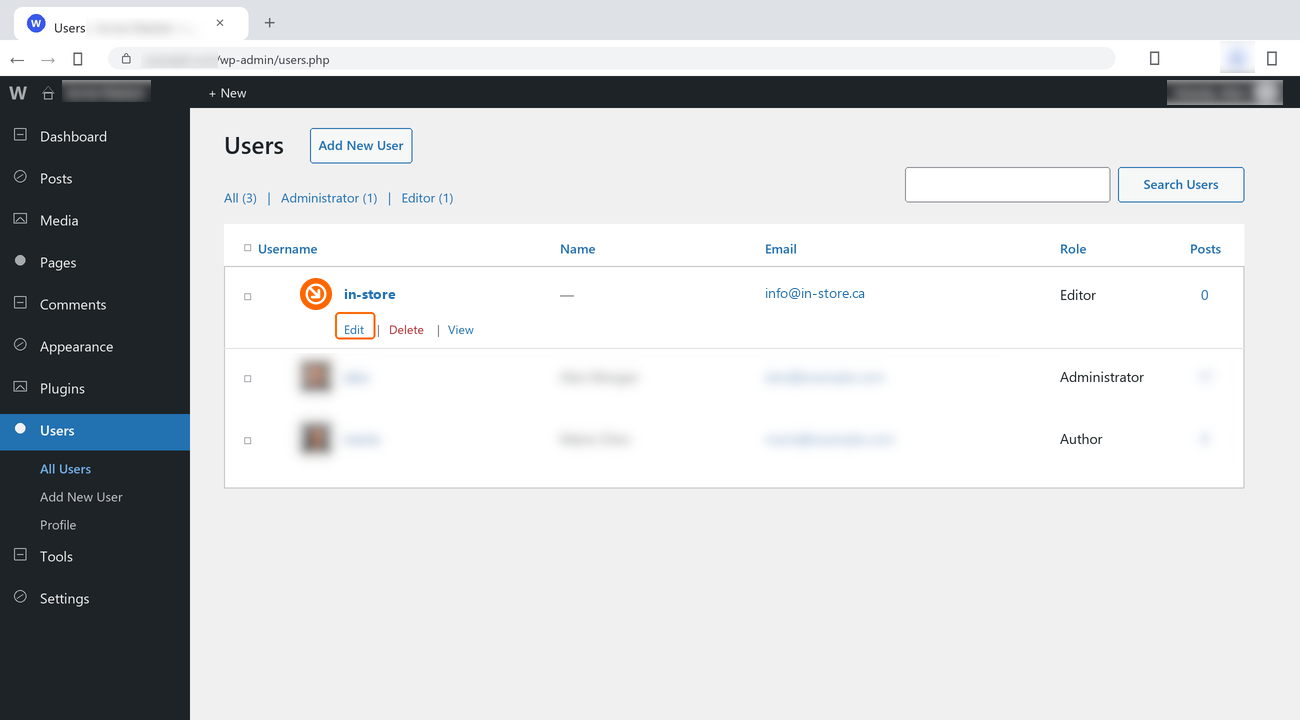
Go to Users, find in-store in the list, and click Edit beneath the name. The profile page opens on the account’s own settings, and the section you need is at the very bottom, below the contact and password fields.
Step 3 – Create an application password
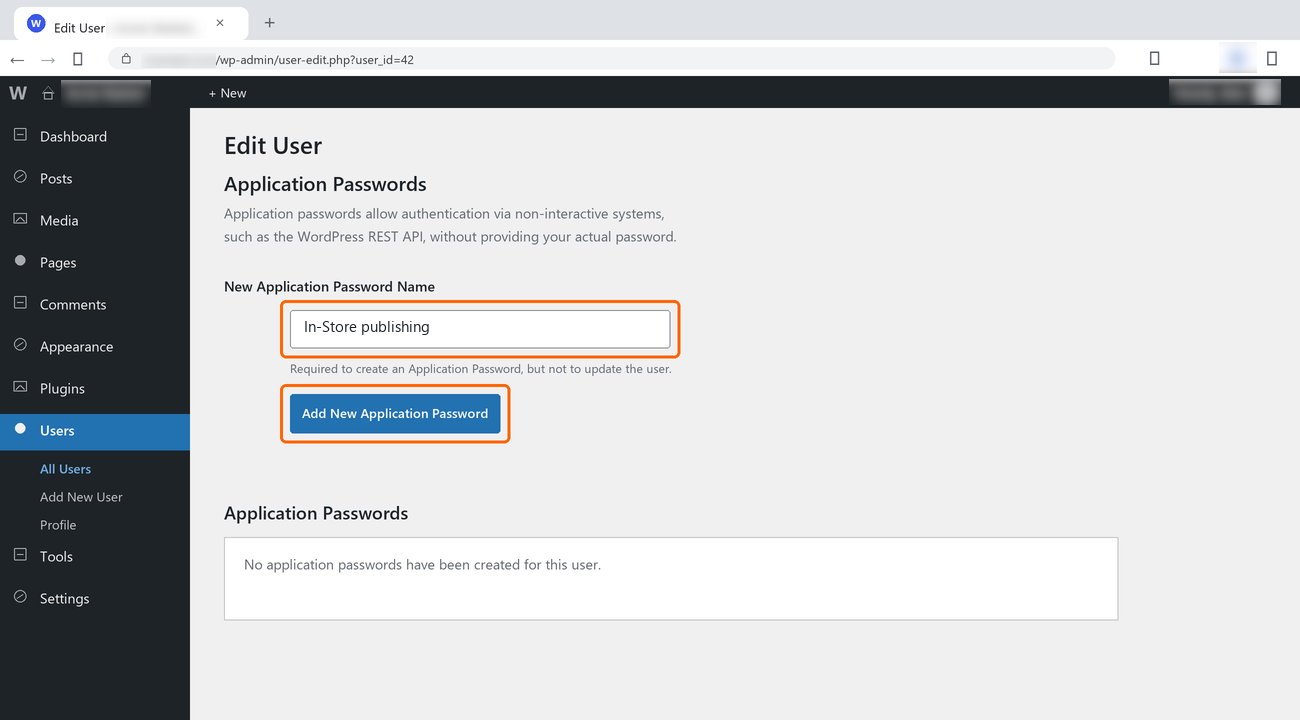
Scroll to the Application Passwords section near the bottom of the profile page. Type a name into the New Application Password Name box, then click Add New Application Password.
The name is only a label for your own records, so you can tell later what a credential was for. Something like In-Store publishing works well.
If there is no Application Passwords section on the page at all, skip ahead to "If you cannot see Application Passwords" below. It is almost always a security plugin rather than anything you have done wrong.
Step 4 – Copy the password before you leave the page
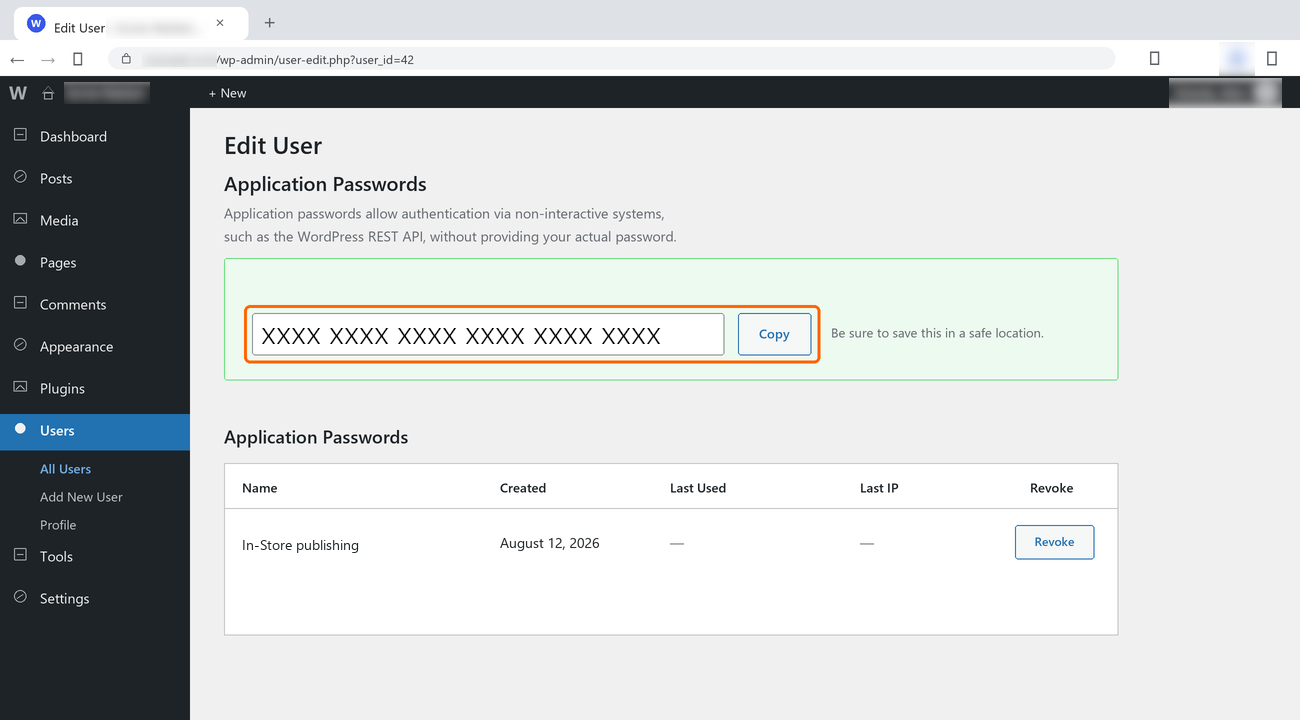
WordPress now shows the generated password once, as letters and numbers in short groups. Copy it before you go anywhere else. Once you navigate away it cannot be displayed again, and the only remedy is to revoke it and generate another.
Copy it exactly as shown, spaces included.
Step 5 – Send us your site address and the password
We need the exact address WordPress uses for your site, rather than the one you would type from memory. Go to Settings, then General, and copy the value in the field labelled Site Address (URL).
Then email the same In-Store address you entered in Step 1 with:
- the Site Address you just copied
- the username in-store
- the application password from Step 4
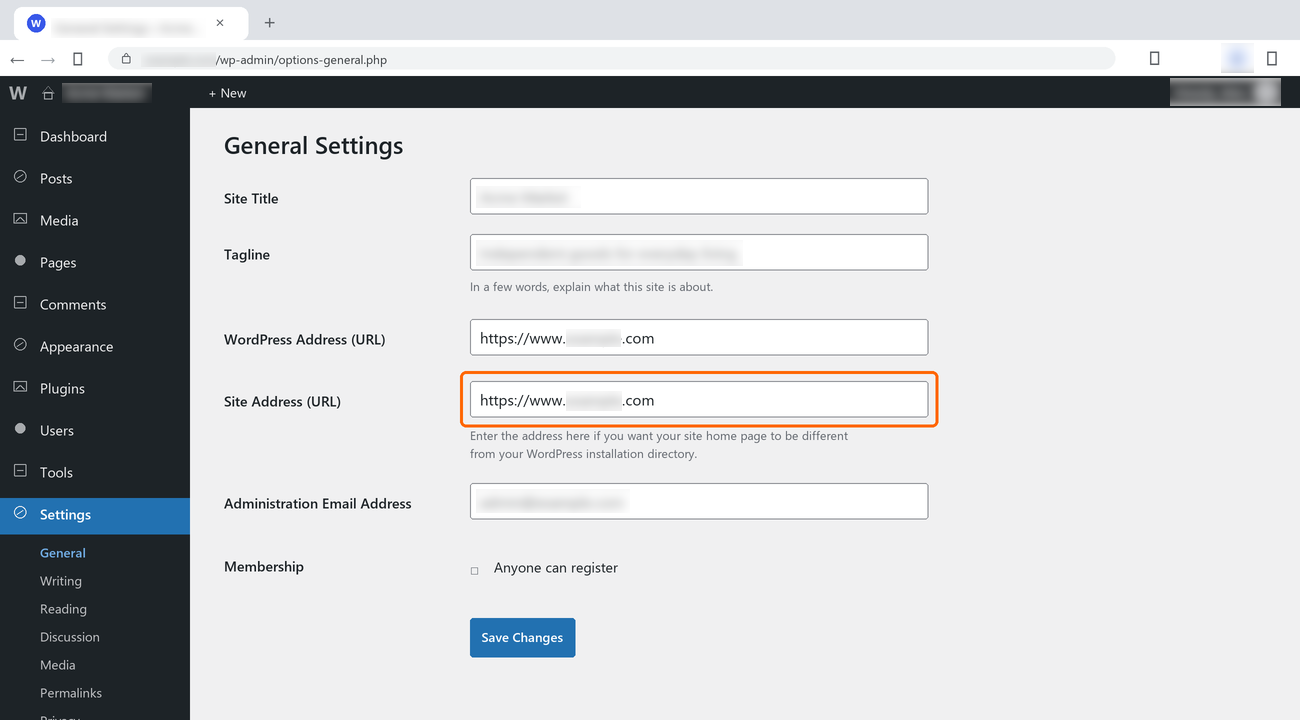
Please send the Site Address exactly as WordPress shows it, keeping or dropping the www to match, and without a trailing slash. If it does not match, images we upload can end up duplicated in your media library. If you keep a staging or development copy of the site, check that this is the live one.
What happens next
That is it. We test the connection at our end and confirm with you once it is working.
From then on, every article we write for you arrives on your site as a draft. Nothing goes live without your say-so. You review each one from your In-Store dashboard, where you can edit it or approve it, and we publish it only after you have approved it.
You keep your Administrator account and full control of the site throughout, and you can carry on posting yourself whenever you want.
If you cannot see Application Passwords
Application Passwords are part of WordPress itself, so if the section is missing from the profile page, something on your site has switched it off. The usual causes are a security plugin such as Wordfence or Solid Security, a hardening setting applied by your host, or a site that is not being served over https.
Some hosts also let the section appear while quietly removing the header the connection depends on. That produces a password that looks perfectly normal and never works.
If you run into either of these, contact us. Your host or whoever maintains the site can usually re-enable it in a couple of minutes, and we can tell them exactly what to look for.
Removing our access at any time
You are always in control, and you can end our access yourself without contacting us. Go to Users, open the in-store profile, scroll to Application Passwords, and click Revoke next to the one you created. It stops working immediately.
To remove the account altogether, go to Users, select in-store, and choose Delete. WordPress will ask what to do with any posts attributed to that user, and you can reassign them to yourself so that nothing disappears from your site.
Need a hand?
Ask our interactive chat bot or give us a call. Our contact info can be found in the link below.