

Before you start
This guide covers Wix sites with the Wix Blog added, which is where the articles we write for you will go.
You need to be the owner of the site, or a collaborator whose role allows inviting other people. If you built the site yourself, that is you.
Why we ask for access
As part of your content marketing service, In-Store writes articles for your website. To add them for you, we ask to be invited onto your site as a blog writer.
This is an invitation, not a password. You send it from your own Wix dashboard, we accept it with our own Wix account, and you can withdraw it yourself at any time. You never share your Wix login with us, and there is nothing for you to send us afterwards. The whole process takes about five minutes.
What this access can do
We ask for the Blog Writer role, which is the narrowest role Wix offers that can still put an article on your site.
As a Blog Writer we can open your blog manager, write posts, publish our own posts, add a cover image, apply one of your existing categories and add tags. That is the whole of it.
A Blog Writer cannot open your site editor or change how your site looks, cannot touch anything outside the blog, cannot edit or delete posts written by you or anyone else, and cannot create new categories, pin a post or mark one as featured. Your own account keeps all of that. One small side effect worth knowing: Wix automatically lists blog writers in your site’s Members Area, so an In-Store member will appear there. That is Wix’s own behaviour and nothing to worry about.
What you’ll need
- A Wix site with the Wix Blog added.
- Owner access to that site, or a role that lets you invite collaborators.
- The In-Store email address, which we provide during onboarding.
- A free collaborator seat on your site. Most Wix plans include one, and if yours is already taken we will help you sort it out.
- About five minutes.
Step 1 – Open Roles & Permissions
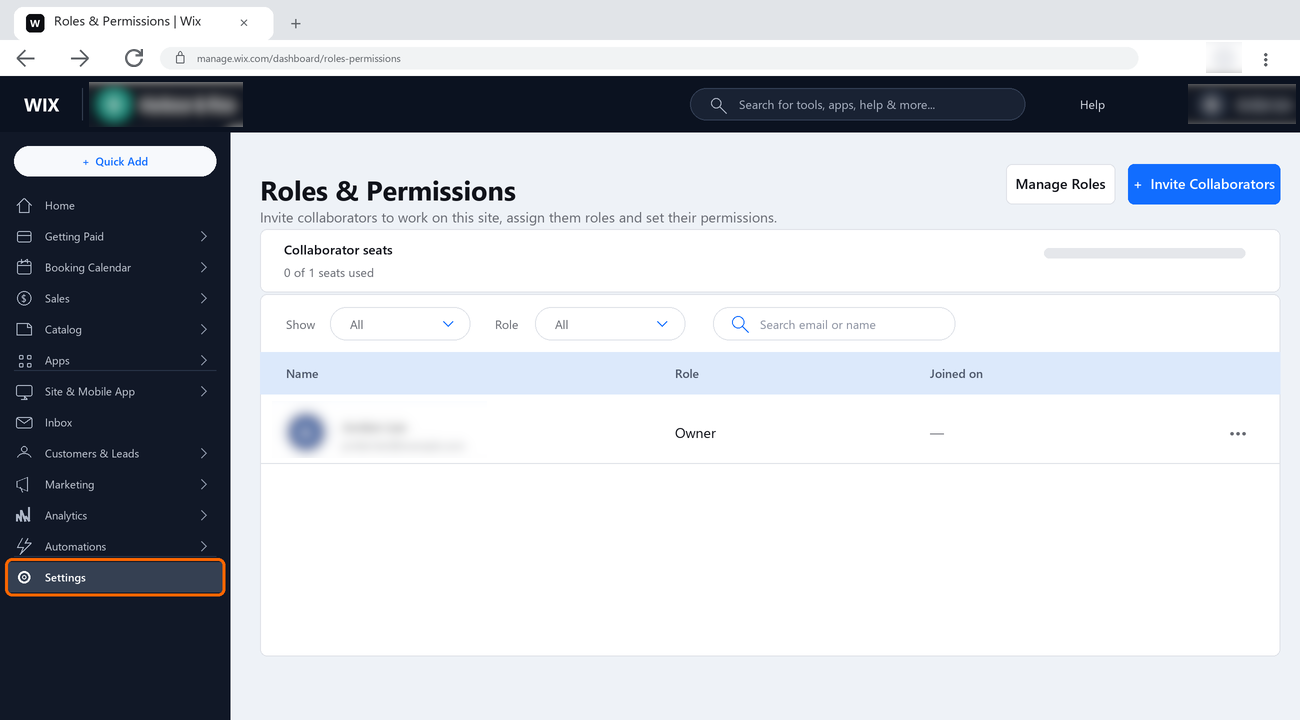
Sign in to Wix and open the dashboard for the site you want us to write for. In the left menu, go to Settings, then Roles & Permissions. The page lists everyone who currently has access to the site, and at the top it shows how many collaborator seats you have used.
Step 2 – Invite In-Store
- Click Invite Collaborators.
- In the Emails field, enter the In-Store address we gave you during onboarding.
- Leave the general site roles unticked.
- Do not send the invite yet. The role is chosen in the next step.
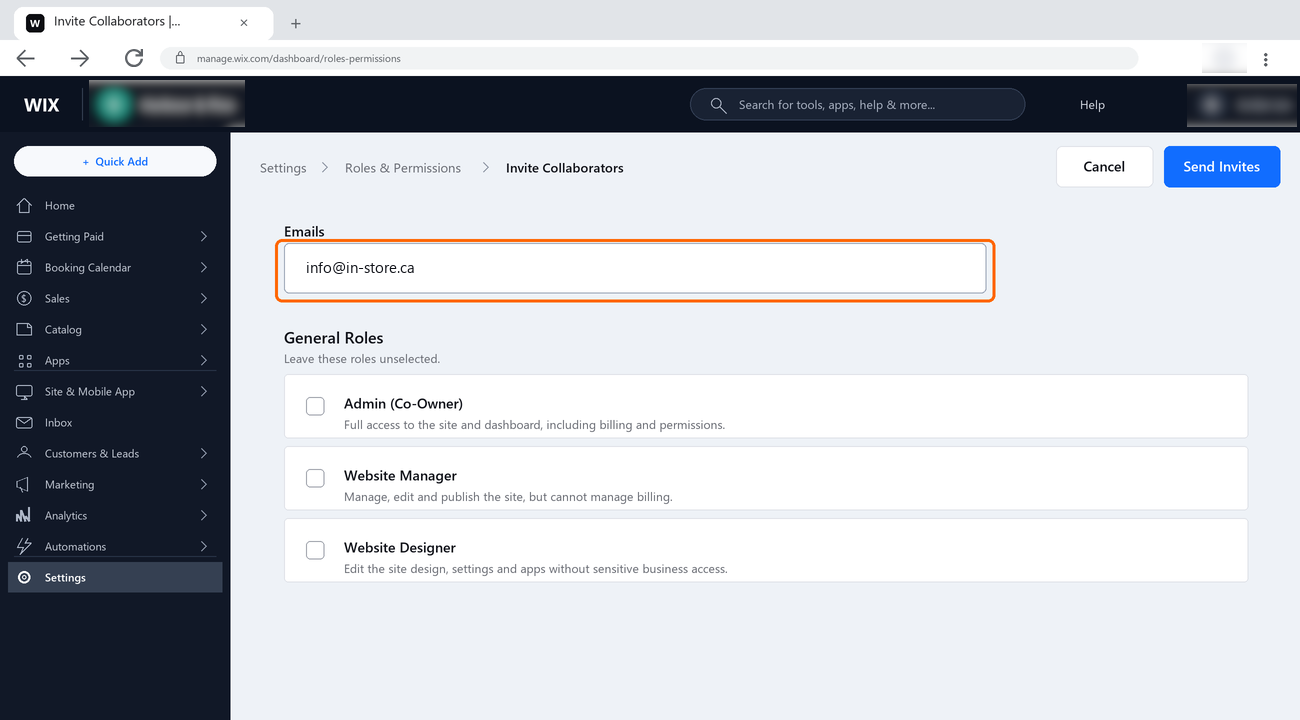
The screenshots use "info@in-store.ca" as an example. Use the address supplied to you if it is different. Enter one address only, even though the field accepts several separated by commas.
Step 3 – Choose the Blog Writer role
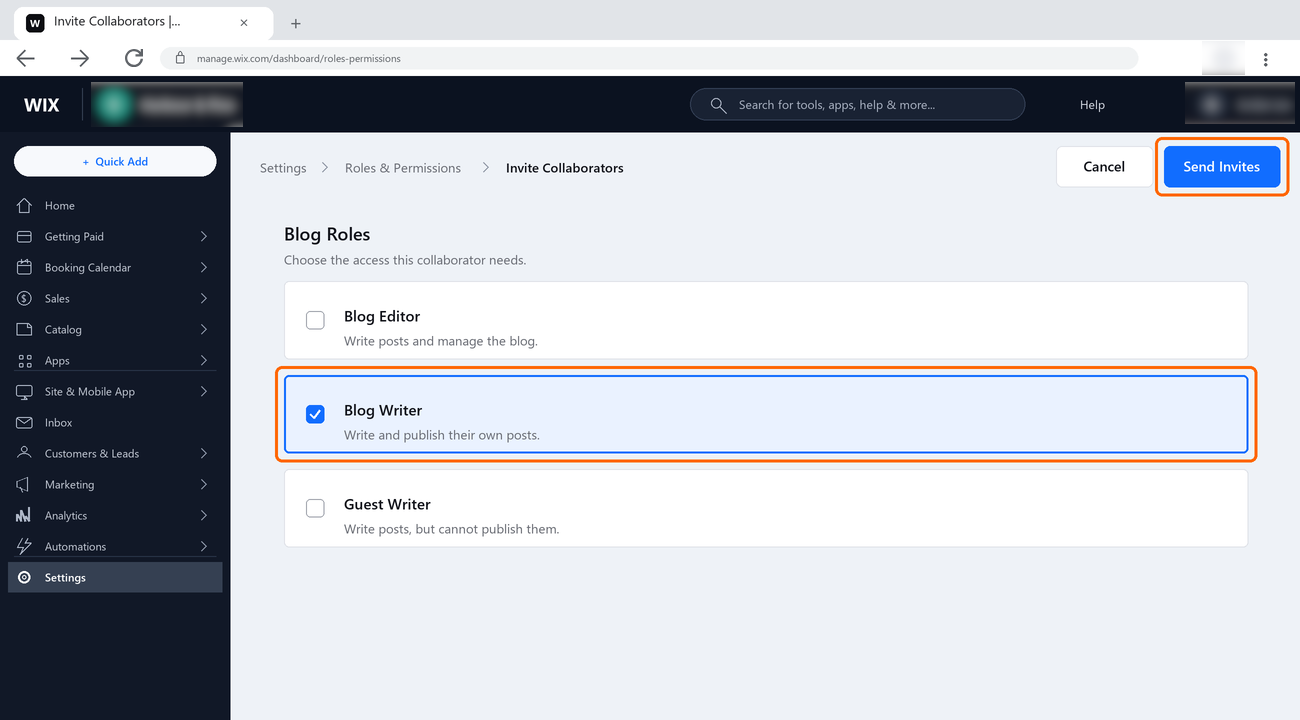
Scroll down the same panel to the Blog Roles section. Tick Blog Writer, then click Send Invites.
There are three blog roles and they are easy to confuse. Blog Writer is the one we need. Blog Editor grants more than we use, and Guest Writer cannot publish at all, which would leave you approving every article twice.
If your site is on Wix Studio, or your dashboard shows a different menu, you can reach the same screen from your blog instead: go to Blog, open the Writers tab, click Add Writer, and choose Blog Writer there. Both routes create the same invitation.
Step 4 – Check the invitation was sent
Back on the Roles & Permissions page, the In-Store address now appears in the list with a PENDING label next to it. That is correct, and it stays that way until we accept.
The Joined on column shows when you sent the invitation and how long is left before it expires. Wix invitations are valid for thirty days.
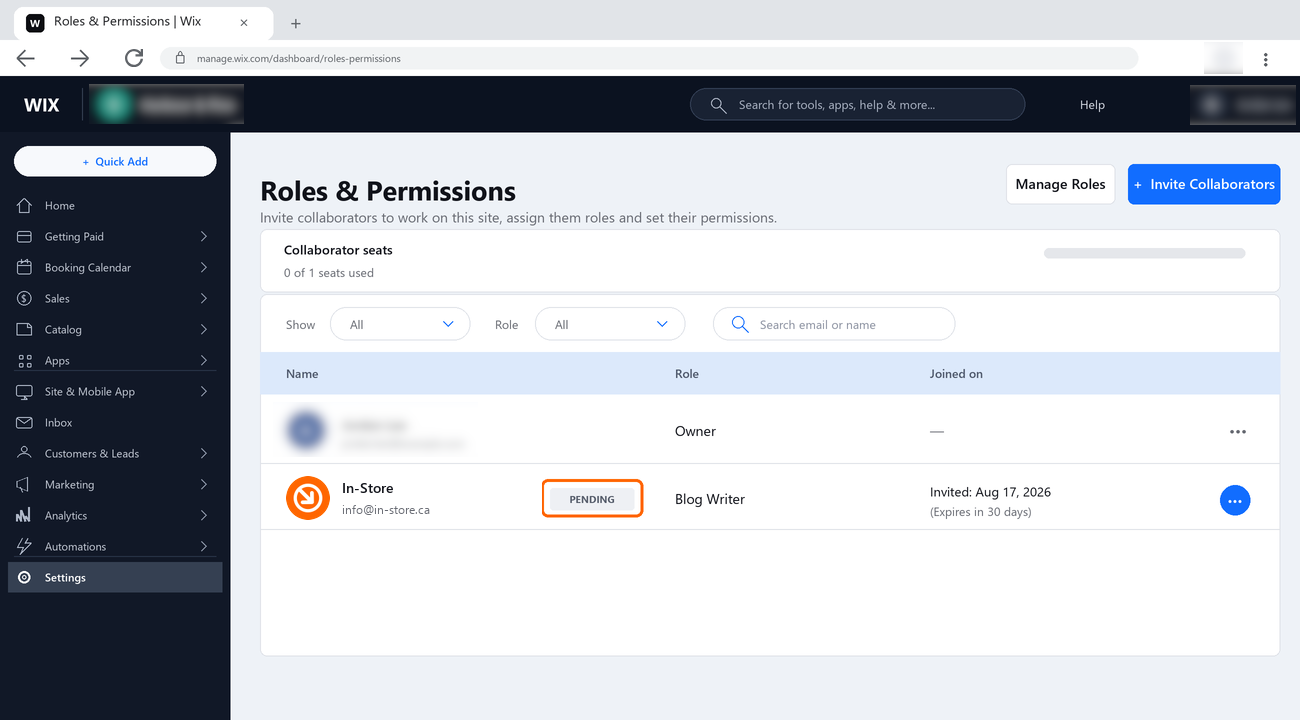
There is nothing to send us. We are notified by Wix and we accept from our side, usually the same working day. If the invitation is still showing PENDING after a couple of days, you can hover over the row, click the More Actions icon, and choose either Resend invite or Get invite link.
What happens next
That is it. Once we accept, we confirm with you that the connection is working.
From then on, every article we write for you is prepared for your review. Nothing goes live without your say-so. Each one waits in your In-Store dashboard, marked In review, where you can read it, edit it, approve it or request changes. It is published only after you have approved it.
You keep full ownership of the site throughout, and you can carry on posting yourself whenever you want.
If Wix says you have no collaborator seats left
Wix sites include one collaborator seat on most plans, and a seat is taken up when an invitation is accepted rather than when it is sent. So if someone else already helps with your site, such as the designer who built it, you may see the invitation go out normally and then fail at our end.
You have two ways round it. You can upgrade the site, which raises the number of seats, or you can free the seat you have by removing a collaborator who no longer needs access.
If you are not sure which applies to you, contact us before changing anything. We can tell you what we are seeing from our side, and it is usually quicker than working it out from the dashboard.
Removing our access at any time
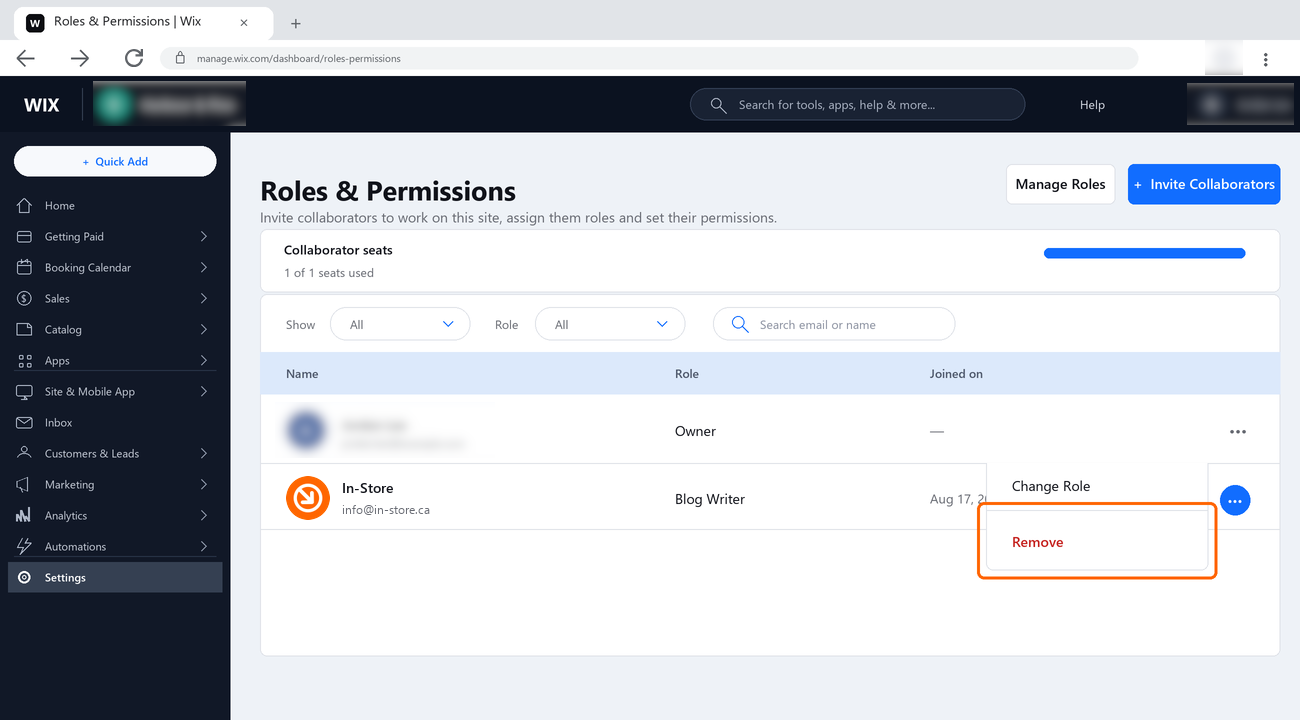
You are always in control, and you can end our access yourself without contacting us. Go to Settings, then Roles & Permissions, hover over the In-Store row, click the More Actions icon and choose Remove.
Access stops immediately and the collaborator seat becomes free again. Articles we have already published stay on your site and remain yours, exactly as they were.
Need a hand?
Ask our interactive chat bot or give us a call. Our contact info can be found in the link below.