Why we ask for access
As part of your content marketing service, In-Store publishes video content to your YouTube channel on your behalf. To let us do this securely, you add our team as a Manager on your channel. You remain the Owner at all times, so you keep full control and can remove our access whenever you choose. The whole process takes about five minutes.
The account to add as a Manager
You do not share your password with us. Instead, you invite a Google account we provide as a Manager on your channel.
We give you the exact In-Store Google account email during onboarding. Add that email as a Manager in the steps below.
What you’ll need
- The Google account that owns or manages your YouTube channel, with your login details and your phone nearby for verification.
- Your channel set up as a Brand Account. Most business channels already are, and we check this in Step 1.
- About five minutes.
Step 1 – Check that your channel is a Brand Account
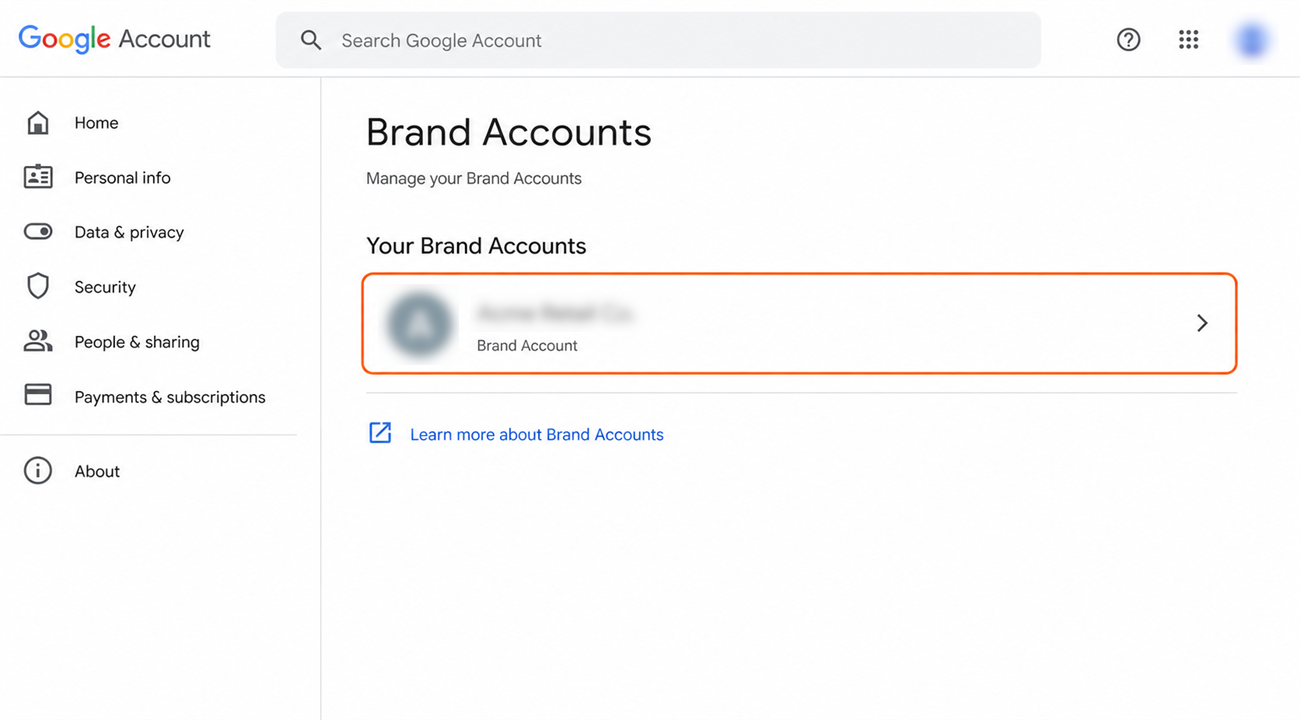
Managers can only be added to a Brand Account. Most business and organization channels already use one. To confirm:
- Sign in to the Google account for your channel.
- Go to myaccount.google.com/brandaccounts.
- If your channel name appears in the list, it is a Brand Account, so continue to Step 2.
- If it does not appear, your channel is a personal account and needs to be moved to a Brand Account first. Contact us and we will guide you through it.
Step 2 – Sign in to YouTube Studio
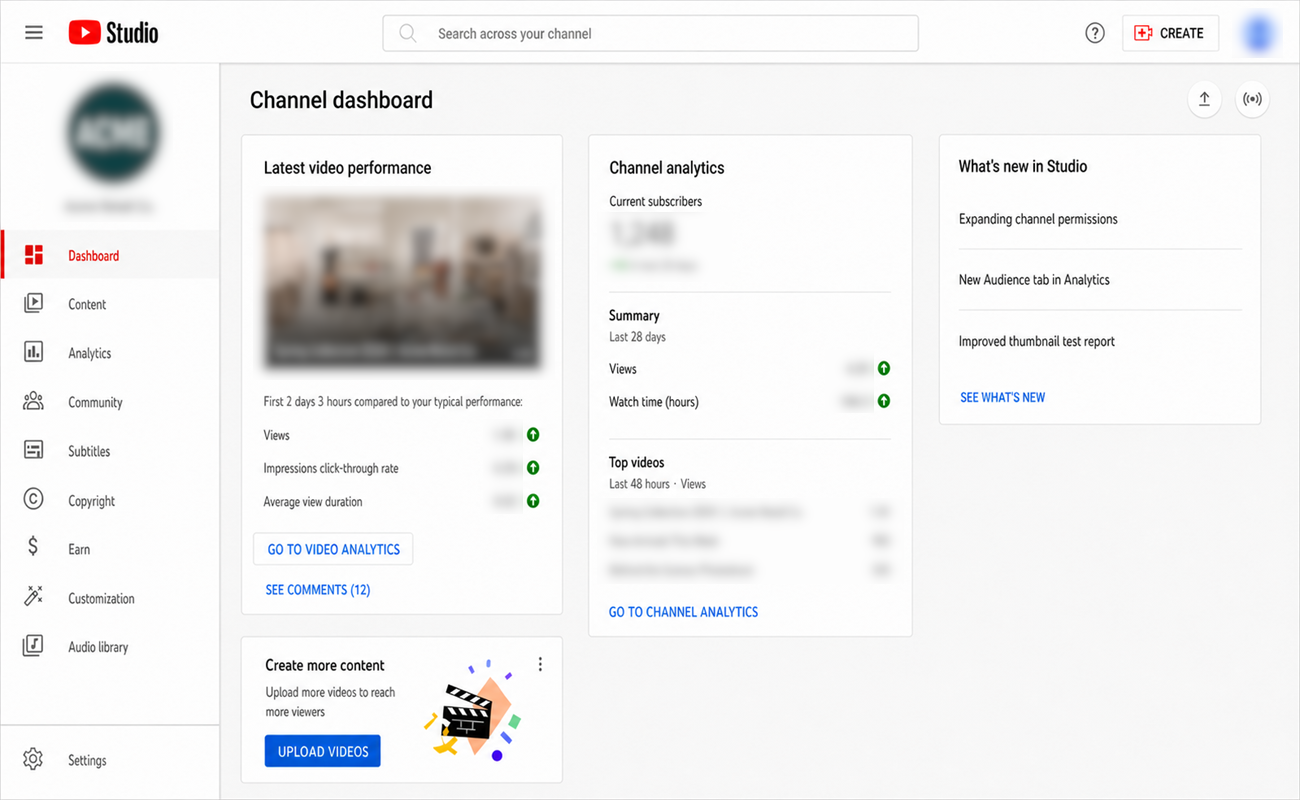
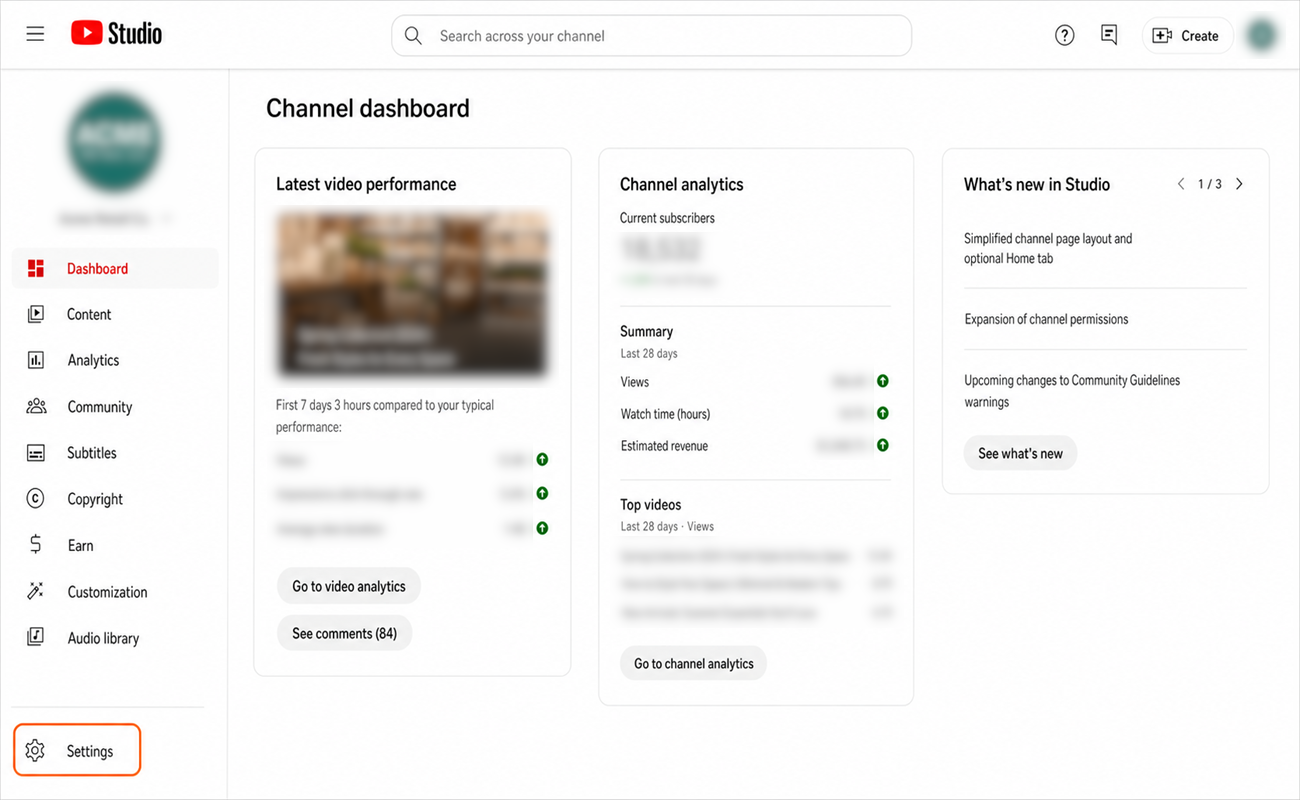
Go to studio.youtube.com and sign in with the Google account for your channel. You should arrive at the Studio dashboard shown below. If you manage more than one channel, check that the right one is selected before going any further.
Step 3 – Open your channel settings
Click Settings in the bottom-left corner. It is the gear icon at the very bottom of the left-hand menu, set apart from the items above it, so it is easy to overlook.
Step 4 – Open the Permissions tab
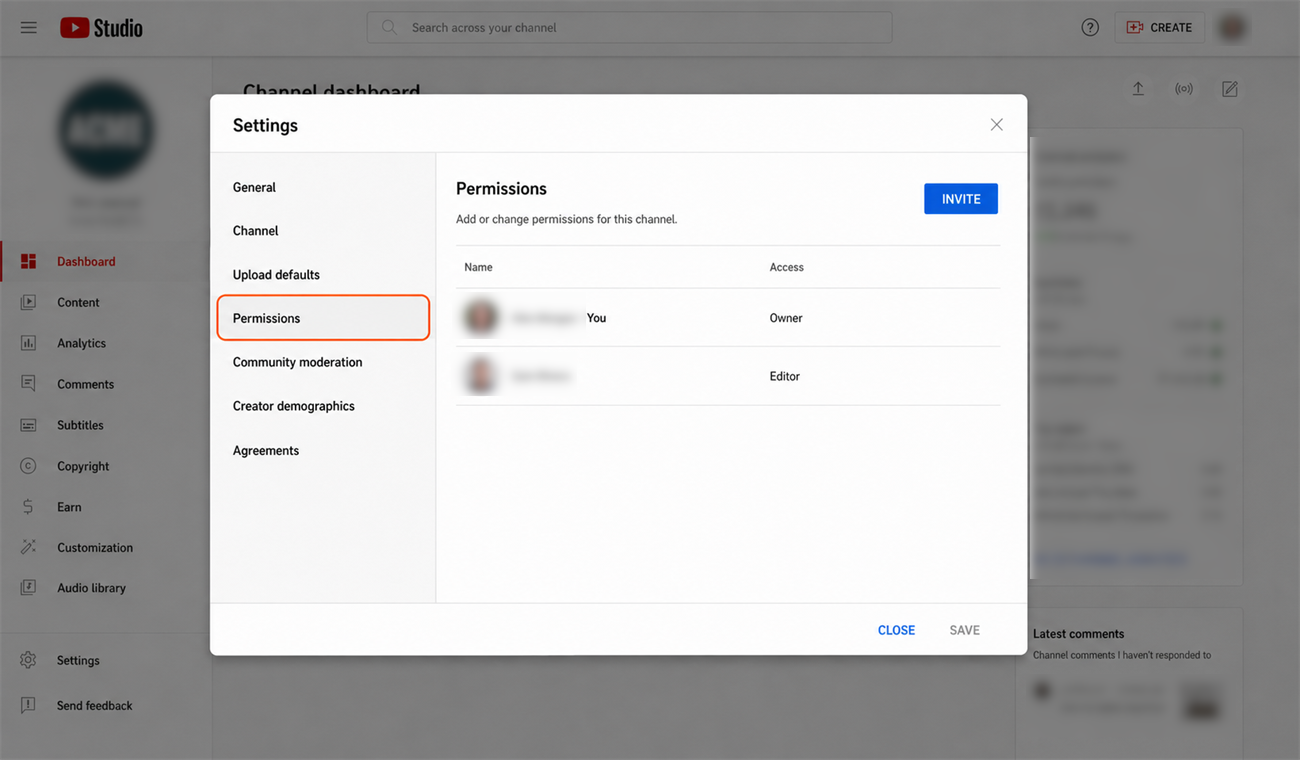
A Settings window opens on top of the dashboard. Click Permissions in the list on the left. This screen lists everyone who currently has access to your channel, and it is where In-Store will appear once we accept your invitation.
Step 5 – Invite the In-Store account
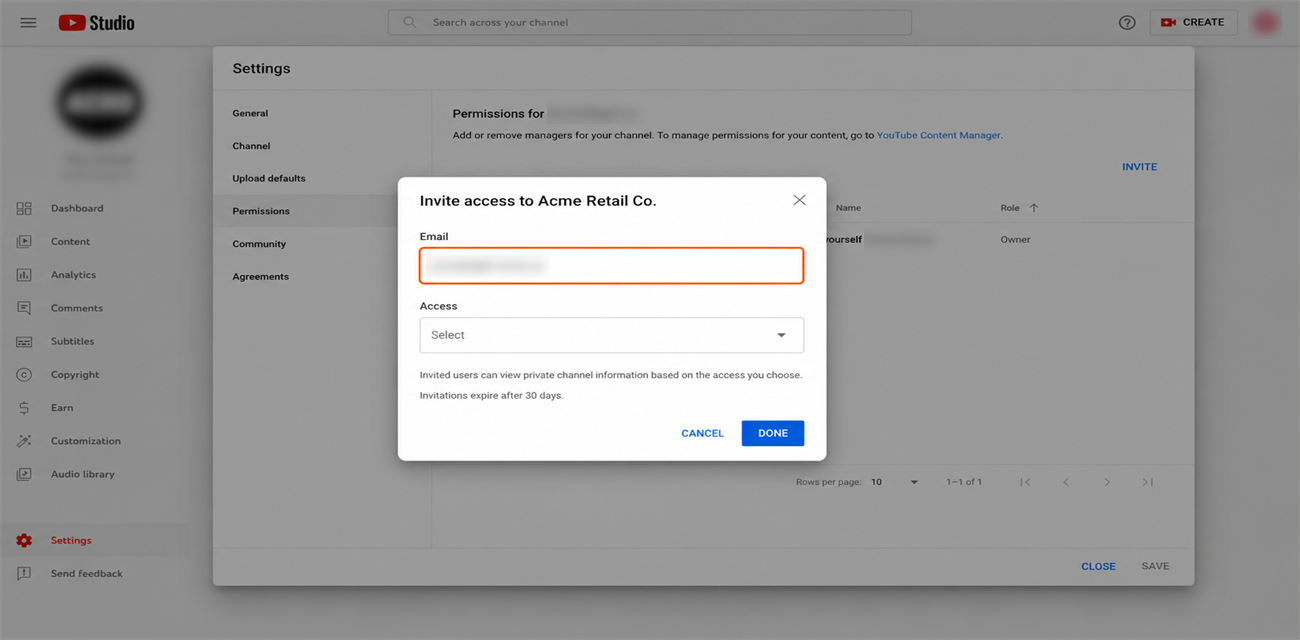
Click Invite (or the invite icon), then enter the In-Store email address we gave you during onboarding. Check the address carefully before continuing, because an invitation sent to the wrong address cannot be recalled.
Step 6 – Set the access level to Manager
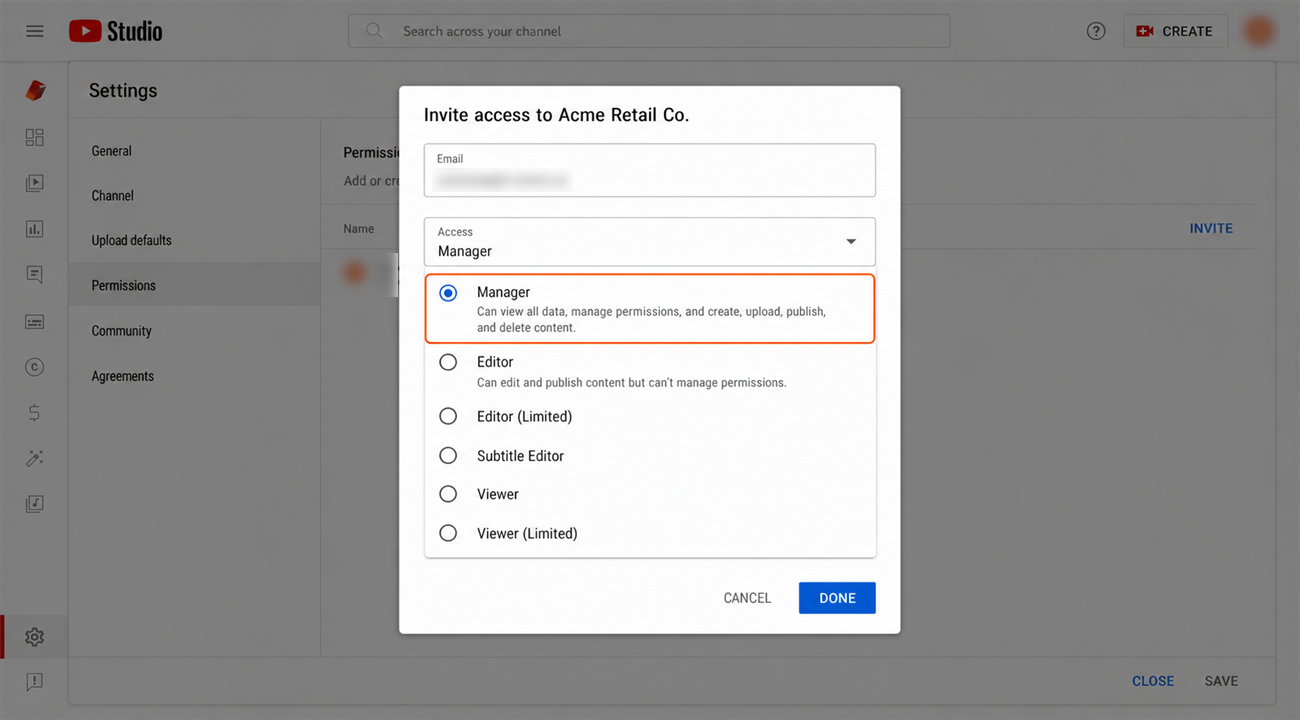
Open the access dropdown and choose Manager. This is the level that lets us upload and publish videos for you; the levels below it do not. Then click Save (or Done). You may be asked to confirm your password or approve a prompt on your phone, which is Google confirming it is really you.
What happens next
That is it. Our team receives your invitation by email and accepts it, usually within one business day. Once accepted, you will see In-Store listed as a Manager on your Permissions screen, and we will confirm with you that publishing is live. You remain the Owner of your channel throughout.
If you do not see a Permissions tab
Some channels are still managed through Google’s Brand Account settings rather than through YouTube Studio. If Step 4 showed no Permissions option, follow the three steps below instead. They give us exactly the same access.
Step 1 – Open your channel settings on YouTube
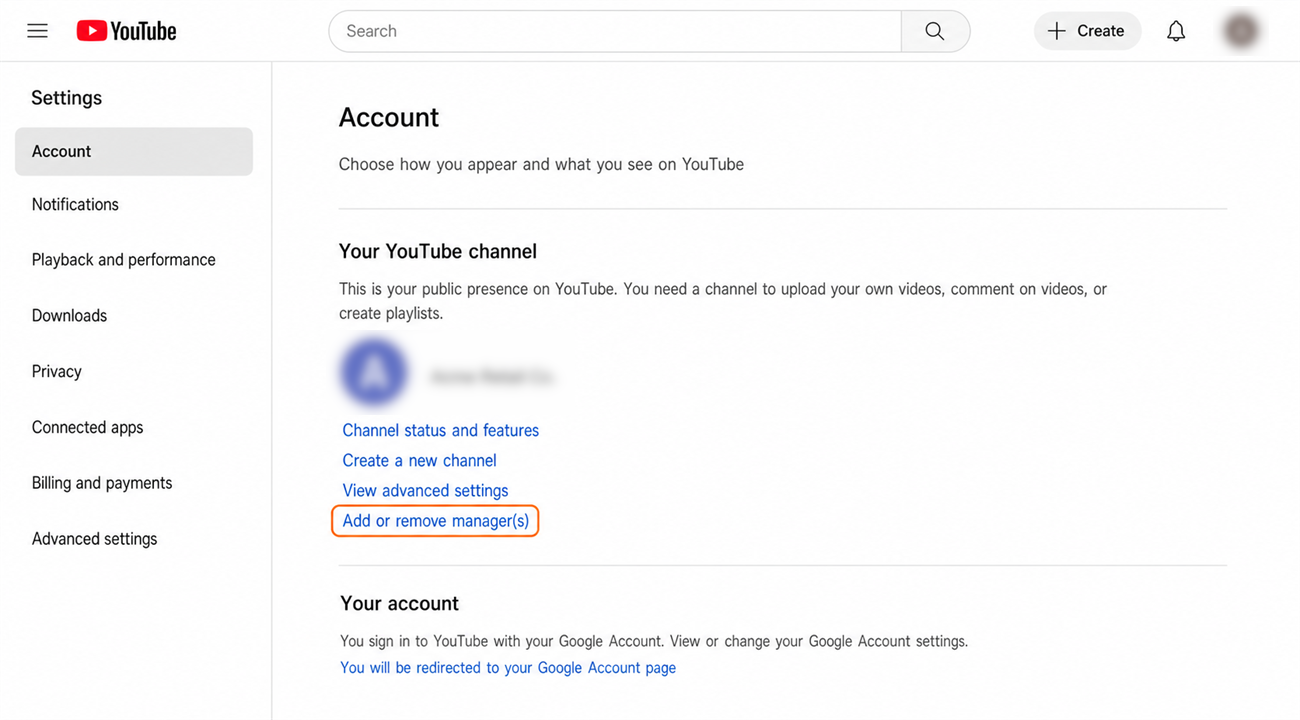
Go to youtube.com and click your profile picture in the top-right corner, then choose Settings. Under your channel, click Add or remove manager(s).
Step 2 – Open Manage permissions in your Brand Account
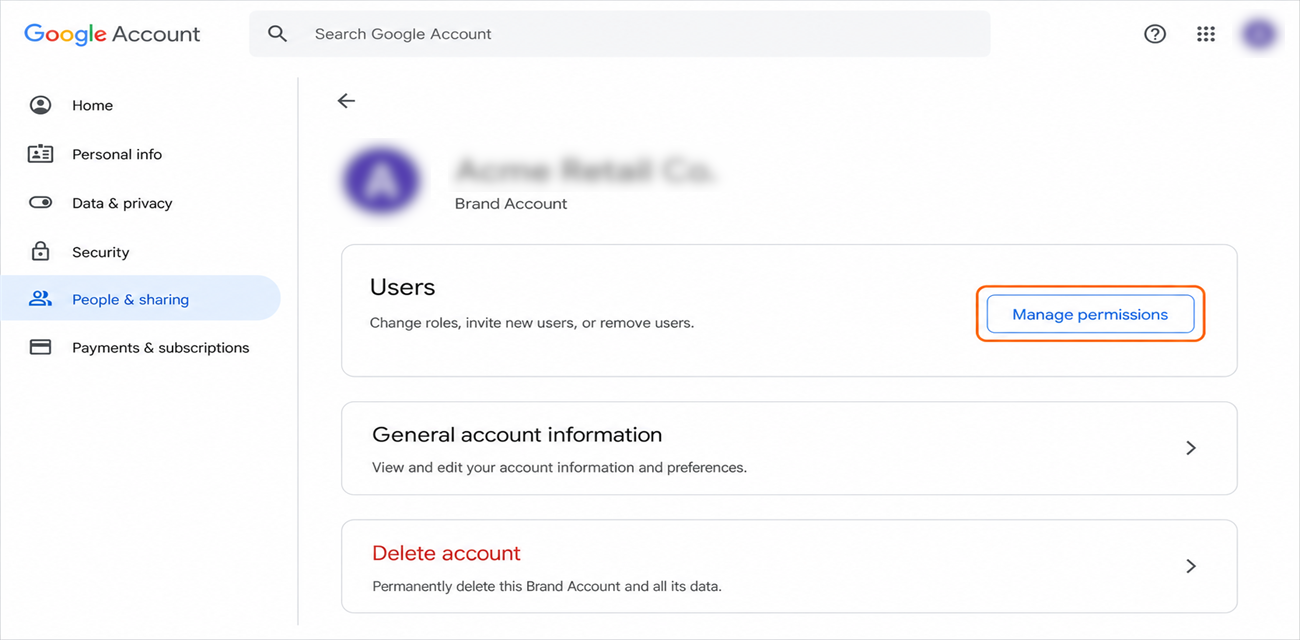
That link takes you out of YouTube and into your Google Brand Account. Click Manage permissions, and verify your identity if Google asks you to.
Step 3 – Send the invitation
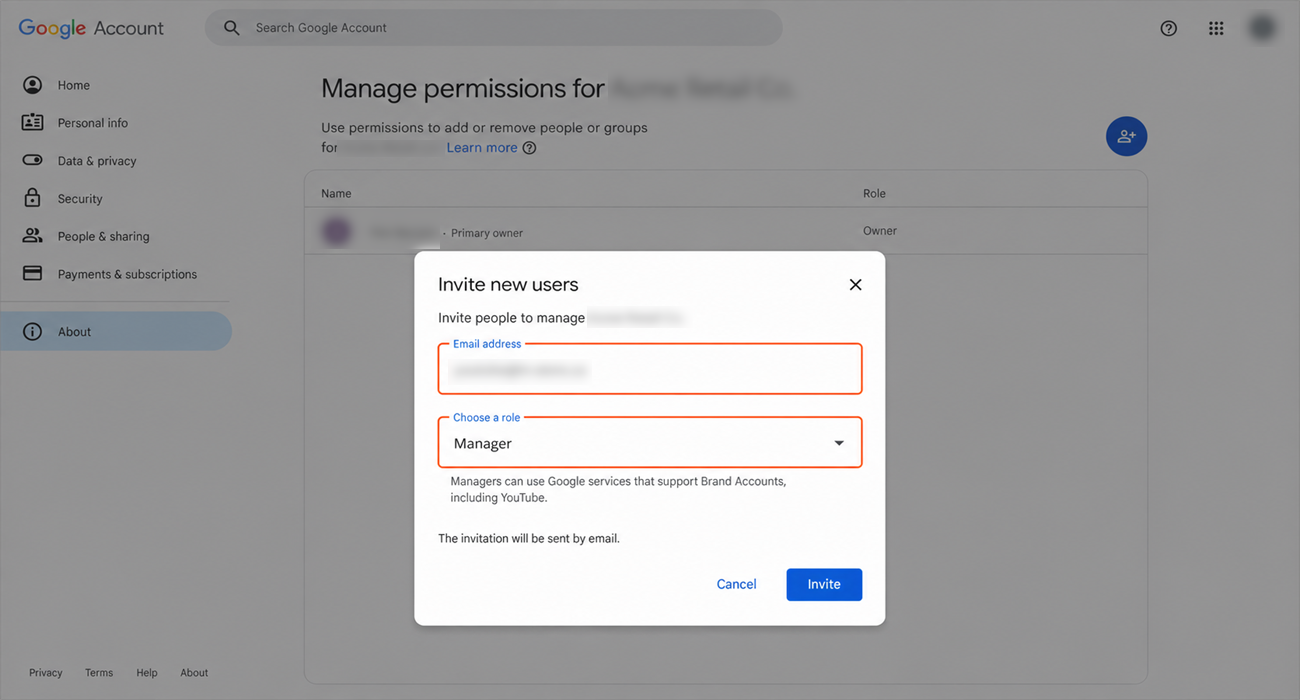
Click the invite-people icon in the top-right corner, enter the In-Store email address, set the role to Manager, and click Invite. From here everything works as it does on the Studio route: we accept by email, and you stay the Owner of the channel.
Removing our access at any time
You are always in control. To remove In-Store later, return to the same Permissions screen, find In-Store in the list, and click the X (Remove). Your channel and all of its content remain entirely yours.
Need a hand?
Ask our interactive chat bot or give us a call. Our contact info can be found in the link below.