
Why we ask for access
As part of your content marketing service, In-Store publishes posts to your X account on your behalf. You connect that account yourself, from inside your cabinet: you press a button, X asks whether you want to allow us, and you say yes. You never share your password, we never see your login, and you can disconnect whenever you choose. The whole thing takes about two minutes.
What you’ll need
- The X account for your business, and the ability to sign in to it on x.com.
- That account set to public rather than protected, and not suspended or limited by X.
- Your In-Store cabinet, open in the same browser.
- About two minutes.
Step 1 - Find X in your Connections
- Sign in to your cabinet.
- Open Settings in the left-hand menu.
- Open the Channels section.
- At the top is the Connections list. Find the X (Twitter) row in it.
If the X (Twitter) row has no Connect X button yet, X publishing has not been switched on for your account. We switch it on and let you know, and the button appears in that row.
Step 2 - Press Connect X
Press Connect X. A new tab opens on x.com with the authorization screen.
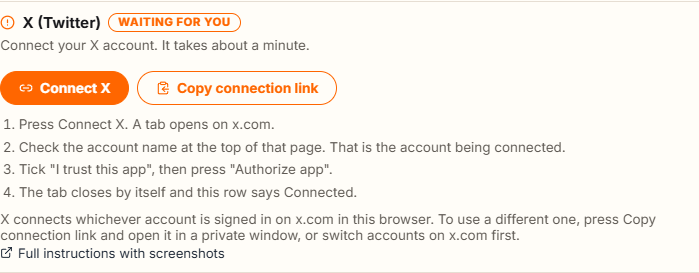
X connects whichever account is signed in on x.com in the browser you are using, and it offers no account picker. So if that browser is signed in to a personal account, press Copy connection link in the same row and open that link in a private window, or switch accounts on x.com first. The link works once and expires in ten minutes.
Step 3 - Authorize us on X
- Check the account name shown at the top of the X screen. That is the account being connected.
- Tick "I trust this app".
- Press Authorize app.
If the name at the top is not your business account, close the tab without authorizing and start again with the connection link in a private window. Nothing is connected until you press Authorize app.
Step 4 - Check the row
The X tab closes by itself and leaves you back in your cabinet. The X (Twitter) row now says Connected, with "Connected as @yourhandle" and the date and time of the connection under it. Once that line is there you are done, and there is nothing to send us.
What this connection lets us do
We publish the posts you have approved, upload the images that go with them, and read your account name so the row can show which account is connected. That is what we use it for.
It is not a password and it is not a role on your account. We cannot change your login, your email address or your phone number, we cannot add or remove anyone on your account, and we cannot read your private messages. You can carry on posting yourself whenever you want.
If X reports the account as suspended
X can suspend or limit an account, and while it does, nothing can be published from it. When that happens the row says so rather than showing a connected line, and connecting the same account again changes nothing. Appeal it in your X account settings first. Once X has lifted it, or once you have another business account to use, press Use a different X account.
Removing our access at any time
You are always in control, and it is the same row you connected from. Press Disconnect to end the connection, which stops scheduled posts from publishing to X. Press Use a different X account to swap one account for another in a single step.
You can also end it from X itself, without opening your cabinet. On x.com go to Settings, then Security and account access, then Apps and sessions, then Connected apps, find our app in the list and revoke it.
Changing your X password does not end the connection. If you want our access gone, use one of the two routes above.
Need a hand?
Ask our interactive chat bot or give us a call. Our contact info can be found in the link below.