
Why we ask for access
As part of your content marketing service, In-Store creates and publishes Pins on your Pinterest boards. Pinterest handles this through Business Manager, where you add us as a partner and grant access to your profile. You do not share your password, you stay the owner of your account, and you can revoke our access whenever you choose. The whole process takes about ten minutes.
The ID you will need from us
You do not share your password with us. Instead, you give an In-Store business ID access to your profile.
We provide the In-Store business ID separately, during onboarding. You enter it in Step 2 below.
What Publisher access covers
Pinterest has one setting for organic access, called Publisher, and it cannot be narrowed. It is worth knowing what it includes before you grant it.
With Publisher access we can create, edit, delete and schedule Pins in any format, see the stats for individual Pins, and manage comments on your Pins. It also lets us create, edit, delete, archive and merge boards, and change your profile cover photo.
We only use it to publish the content we produce for you. But since Pinterest offers no posting-only option, there is no setting that limits us to that.
Publisher access does not touch your account itself. We cannot change your login, add or remove other people, see your billing, or remove you from your own business. Those stay with you.
What you’ll need
- A Pinterest business account for your business, not a personal one.
- Access to Business Manager on that account, so you can add partners.
- The In-Store business ID, which we provide.
- About ten minutes.
Step 1 – Open Business Manager and go to Partners
- Sign in to your Pinterest business account.
- Click the menu icon in the top-left corner of the screen.
- Under Manage business, select Business Manager.
- Click Partners in the left-hand navigation.
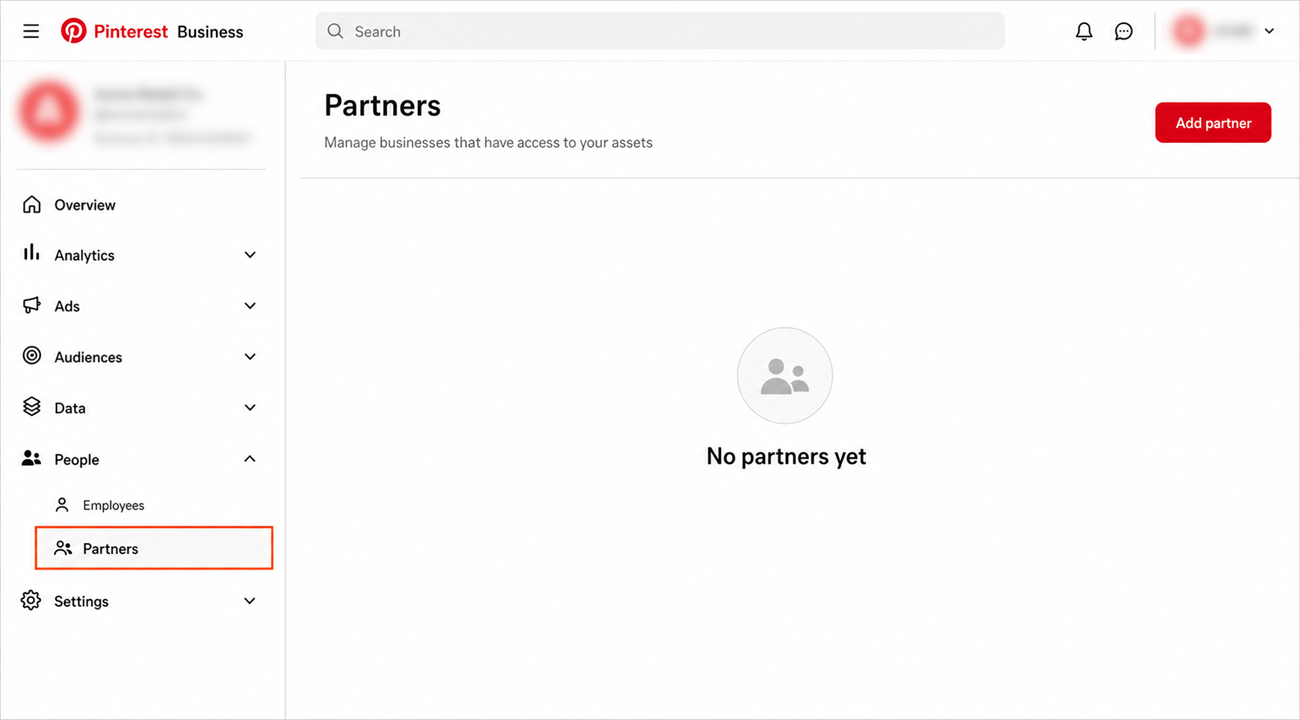
Use Partners, not Employees. The two sit next to each other, and Pinterest warns that adding an agency as an employee stops the access from working properly. We are a partner.
Step 2 – Enter the In-Store business ID
- Click Add partner.
- Enter the In-Store business ID we gave you.
- Choose Invite a partner to access your assets.
- Click Show assets.
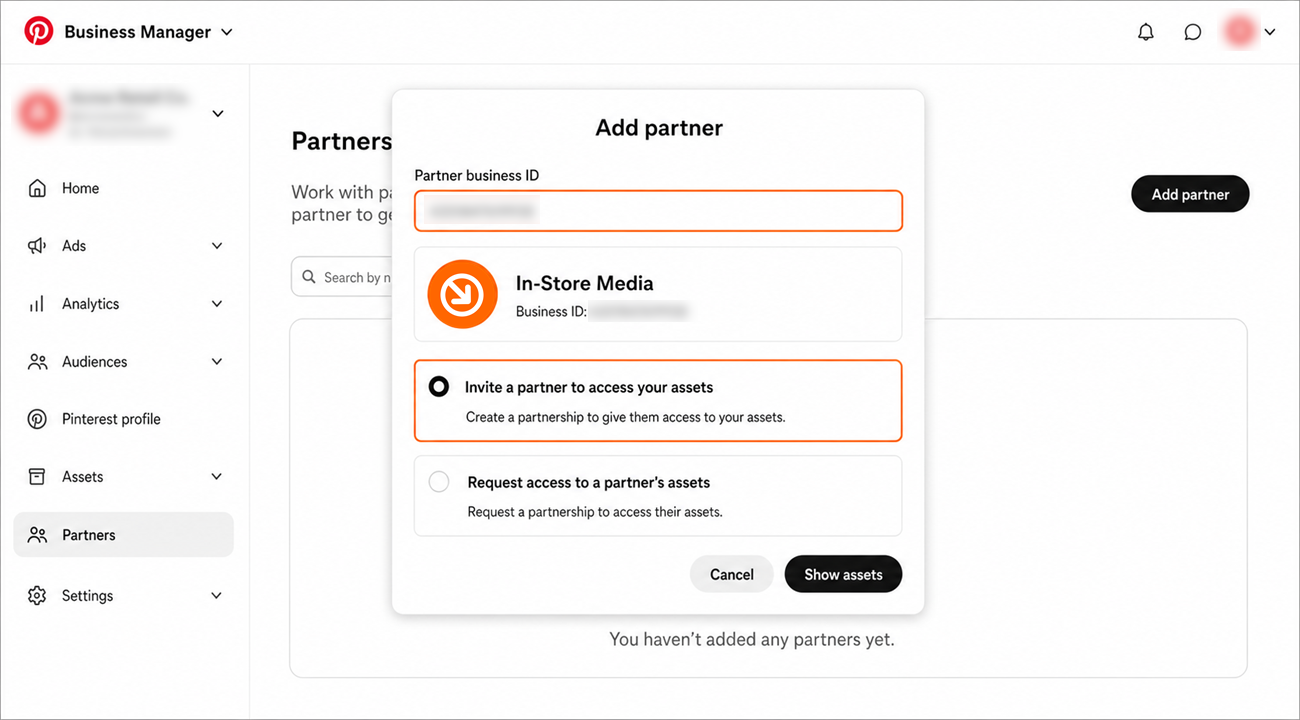
Check the ID carefully before continuing, because access granted to the wrong business ID goes to a stranger.
Step 3 – Grant Publisher access to your profile
Open the profile tab and tick Publisher next to your profile, then send the invitation.
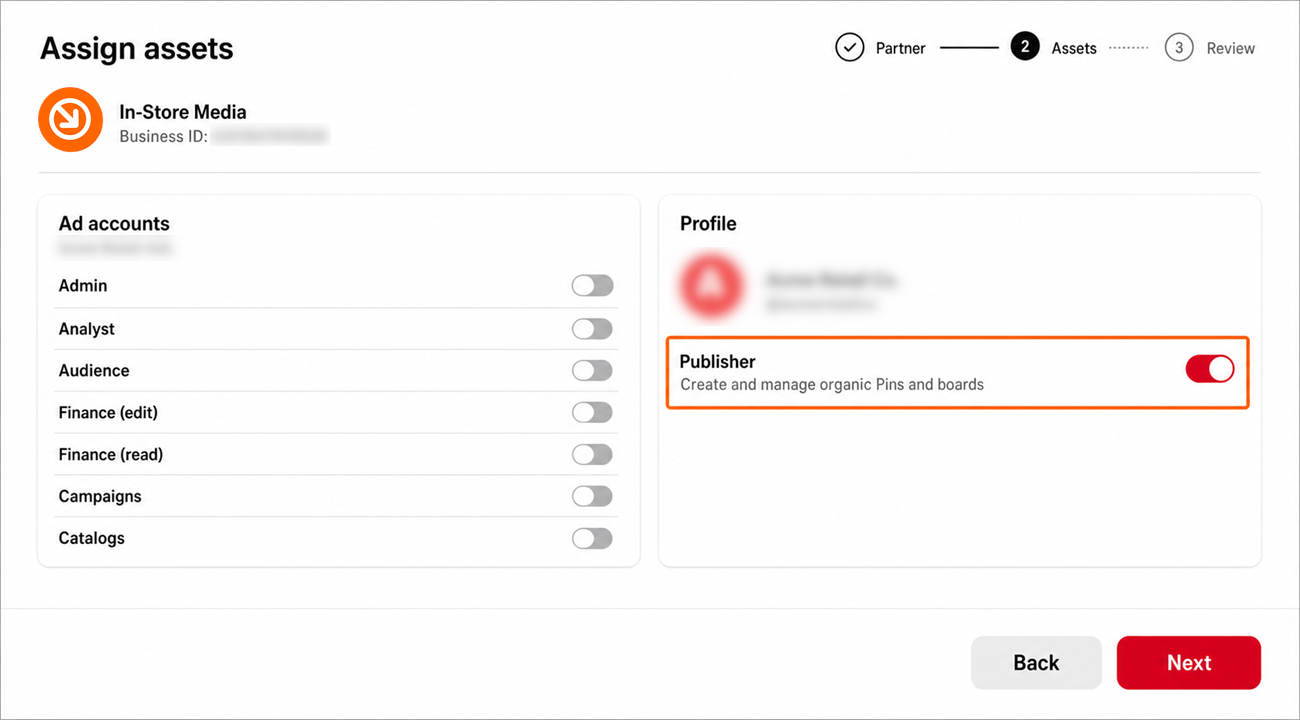
You will pass a row of ad account permissions on the way, with names like Admin, Analyst, Campaign and Finance. Leave all of them switched off. We publish content and do not run your advertising, so none of them are needed.
Step 4 – Confirm the connection
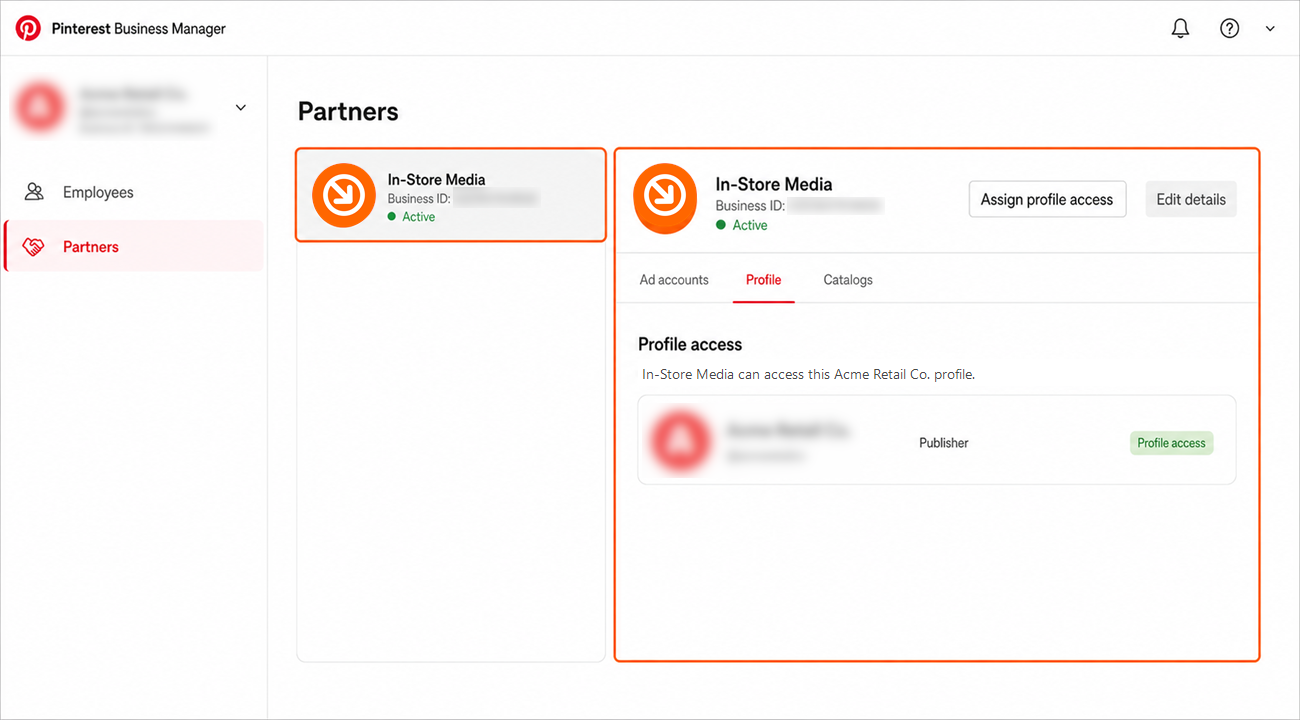
We receive your invitation by email and accept it, usually within one business day. Once accepted, In-Store appears in the Partners section of your Business Manager, and we will confirm with you that publishing is live.
What happens next
That is it. In-Store can now create and schedule Pins on your boards, and we will confirm with you once publishing is live. You remain the owner of your account throughout, and you can carry on pinning yourself whenever you want.
Removing our access at any time
You are always in control. In Business Manager, open the Partners tab, select In-Store, go to the Profile subtab and click Revoke access. That ends our access to your profile while leaving the partnership in place. To remove us entirely, click the minus icon next to our name in the Partners list.
Need a hand?
Ask our interactive chat bot or give us a call. Our contact info can be found in the link below.