
Why we ask for access
As part of your content marketing service, In-Store publishes posts to your Google Business Profile, the listing that appears in Google Search and Maps. To let us do this securely, you add a Google account we provide as a Manager on your profile. You do not share your password, you stay the owner, and you can remove our access whenever you choose. The whole process takes about five minutes.
Google renamed this product from Google My Business to Google Business Profile, and you now manage it directly from Search and Maps rather than a separate app. If you are looking for the old app, everything described here is its replacement.
The account to add as a Manager
You do not share your password with us. Instead, you invite a Google account we provide, and we accept from our side.
We give you the exact In-Store Google account email during onboarding. Add that address in Step 2 below.
What a Manager can do
Google offers two roles, Owner and Manager, and we ask for Manager because it is the narrower one.
As a Manager we can create and publish posts. The same role also allows editing your business information, hours, phone number, services and photos, replying to reviews and messages, and downloading insights. Google does not offer a posting-only role, so those come bundled.
A Manager cannot add or remove people, and cannot delete your profile. Both of those stay with you as the owner, and they are the reason we ask for Manager rather than Owner.
What you’ll need
- A Google Business Profile for your business, and owner access to it.
- The In-Store Google account email, which we provide.
- About five minutes.
Step 1 – Open People and access
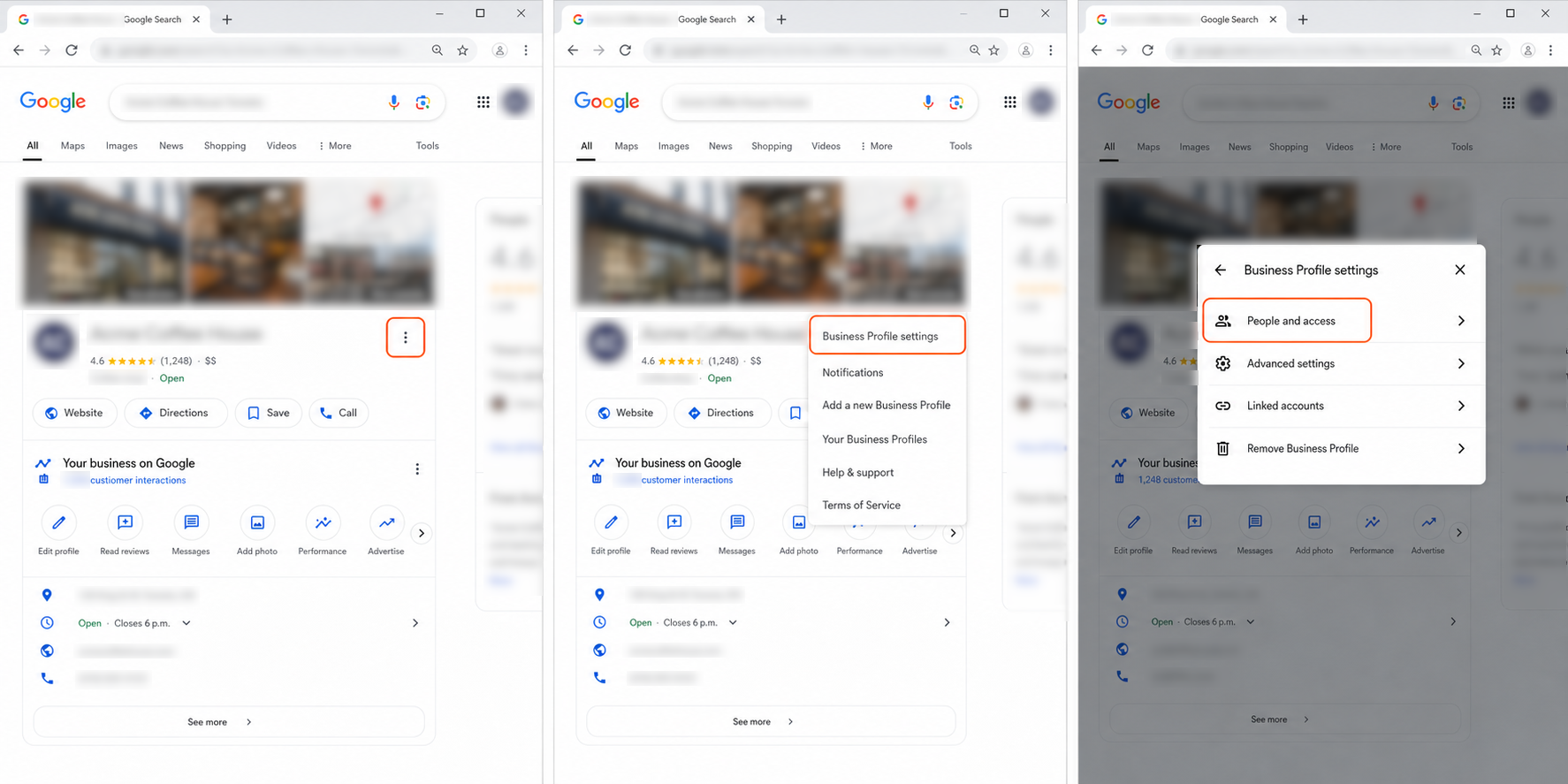
- Open your Business Profile in Google Search or Maps, or at business.google.com, while signed in to the Google account that owns it.
- In the profile-management area, select More (the vertical three-dot icon).
- Select Business Profile settings.
- Select People and access.
Step 2 – Add the In-Store email address
- In People and access, select Add. The control uses a person-and-plus icon and normally appears on the upper left, beneath the explanatory text.
- Enter the exact In-Store Google account email supplied during onboarding.
- Check the spelling before continuing. If you make a mistake here, you risk sending the invite to a stranger.
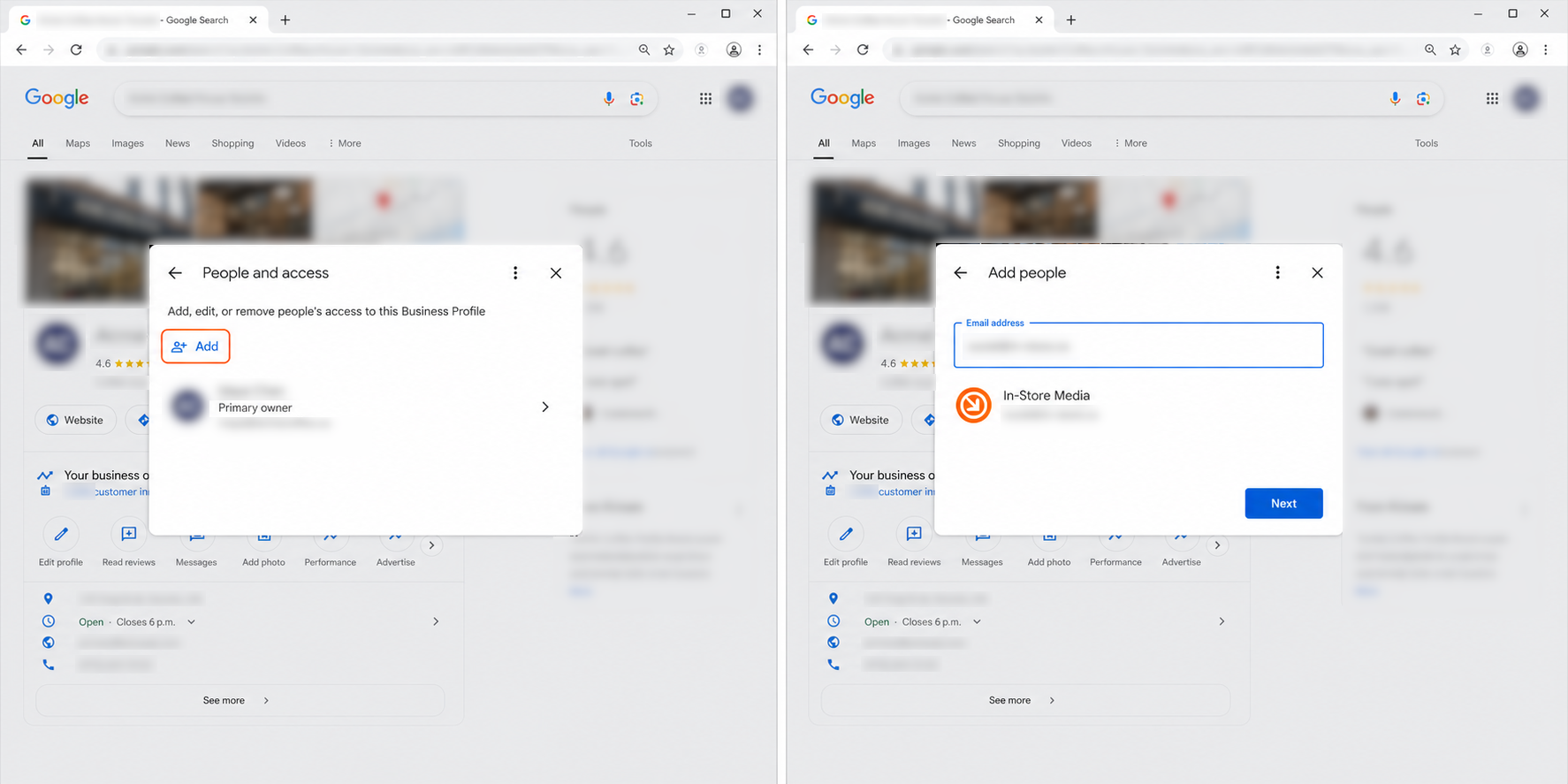
The screenshots use "social@in-store.ca" as an example. Use the address supplied to you if it is different.
Step 3 – Choose Manager, then invite
- Under Access, select Manager, not Owner.
- Select Invite.
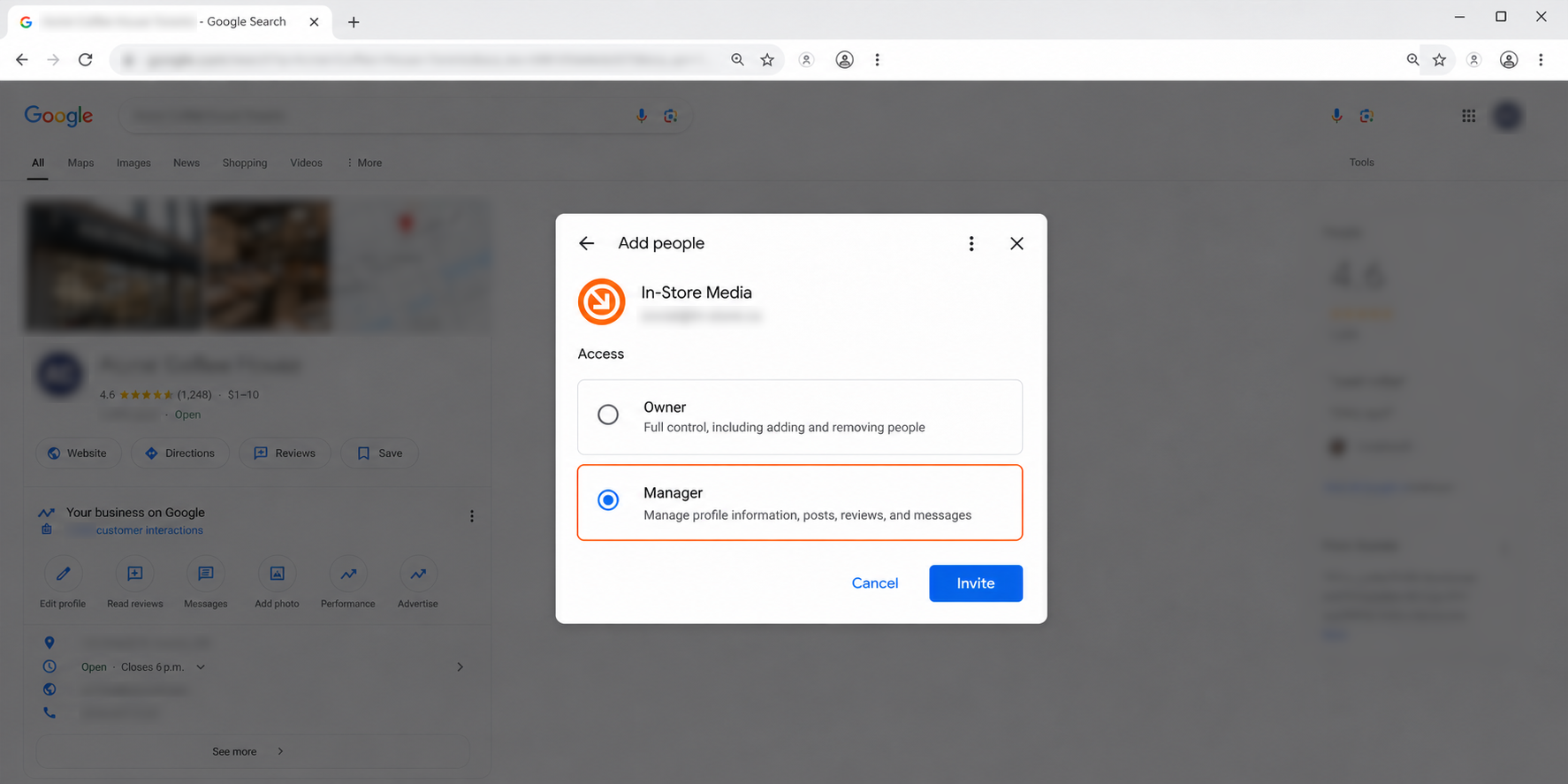
Owner would let us add and remove people and delete your profile entirely. We do not need either.
Step 4 – Confirm the connection
Your invitation appears under Pending on the same screen until we accept it, usually within one business day. Once accepted, In-Store moves into your list of users as a Manager, and we will confirm with you that publishing is live. Google also emails the profile owner when an invitation is accepted.
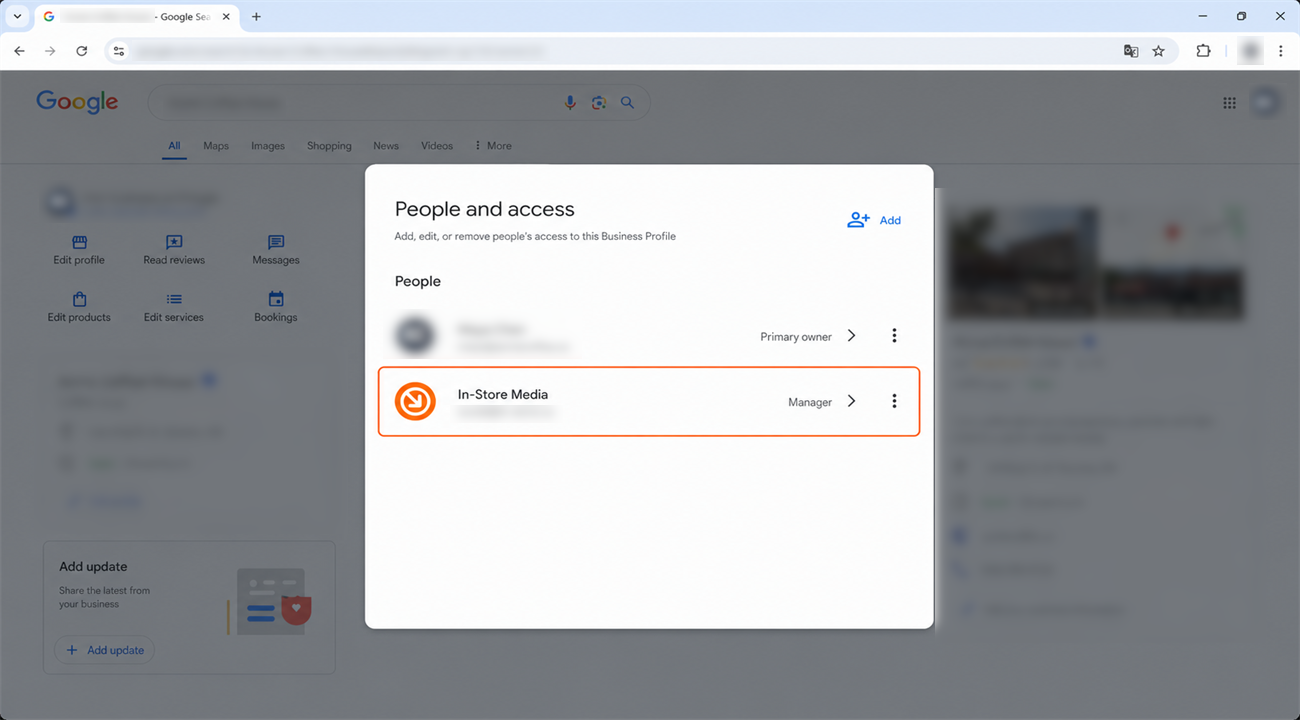
If you need to withdraw the invitation before we accept, find it under Pending and select Cancel invitation.
What happens next
That is it. In-Store can now publish posts to your Business Profile, and we will confirm with you once publishing is live. You remain the owner throughout, and you can carry on posting yourself whenever you want.
Removing our access at any time
You are always in control. Go to Business Profile settings, then People and access, select In-Store, and choose Remove person. Only owners can remove people, so this is something we cannot do to you or to anyone else on your profile.
Need a hand?
Ask our interactive chat bot or give us a call. Our contact info can be found in the link below.